> ## Documentation Index
> Fetch the complete documentation index at: https://linkly.ai/docs/llms.txt
> Use this file to discover all available pages before exploring further.
# Using Linkly AI in ChatGPT
> Connect your Linkly AI local knowledge base to ChatGPT, letting ChatGPT search and read your private documents
## What You Can Do
No more manually pasting context — just ask "What ideas have I written about
XX? use linkly-ai", and Linkly AI's `search` tool will search across all
your notes on your computer, providing the relevant content to ChatGPT so it
can give you well-grounded answers.
Let ChatGPT retrieve and read your relevant notes and documents on your
computer through Linkly AI, then generate article drafts, speech scripts, or
email replies — content sourced from your actual private materials, not
generated from thin air.
You can have ChatGPT read meeting records and research reports stored on
your computer. Linkly AI handles `search` and `read`, letting ChatGPT
synthesize the answers — no need to flip through documents one by one.
## Prerequisites
* ChatGPT Plus or Team subscription
* Completed [remote access configuration](/docs/en/use-in-remote), with the desktop tunnel showing ● Connected
## Configuration Steps
On [chatgpt.com](https://chatgpt.com), click **Apps** in the left sidebar to
open the settings panel.
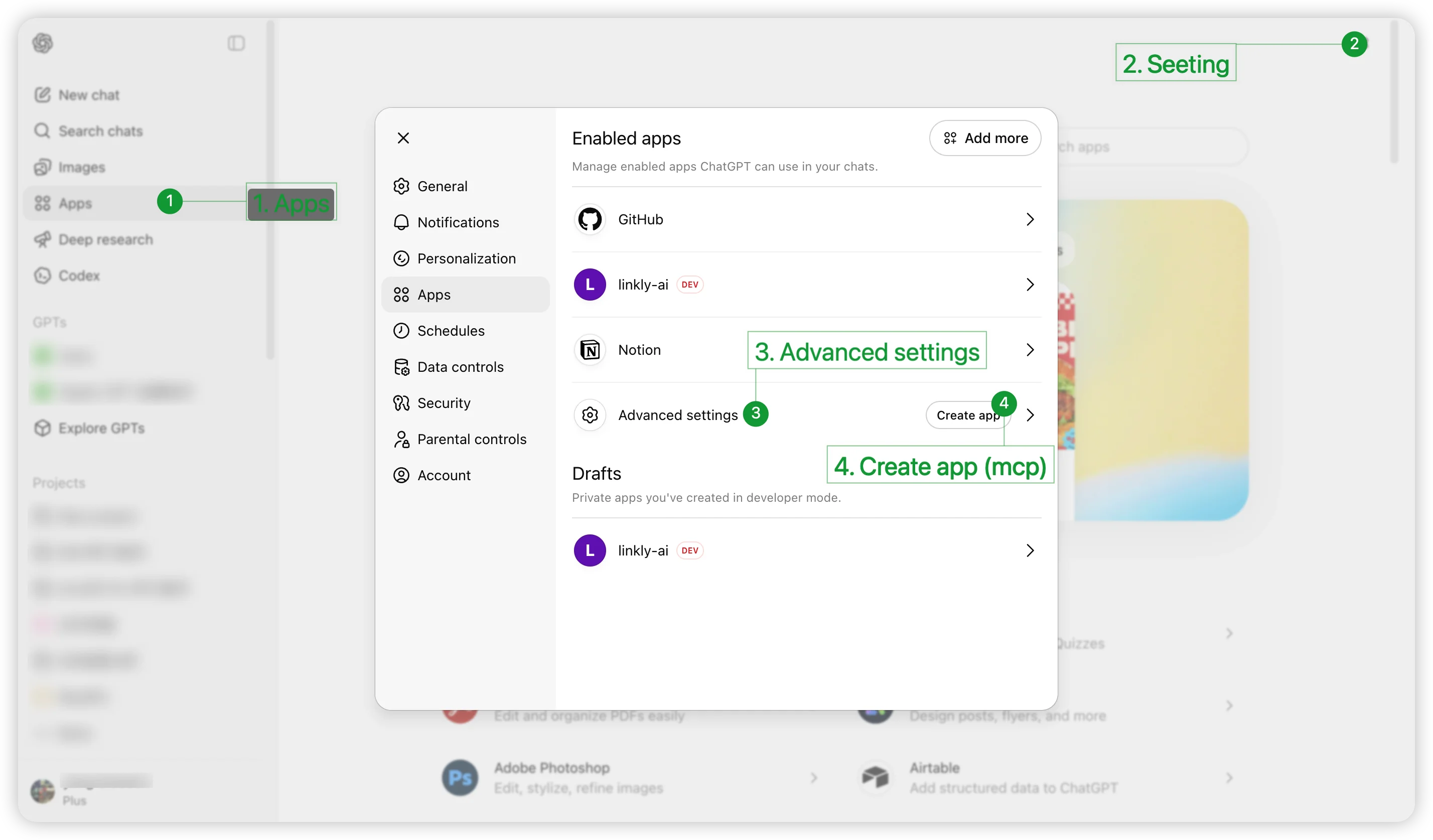 In the settings panel, click **Advanced settings**, then toggle **Developer
mode** on. Once enabled, the **Create app** button will appear on the page.
Click **Create app** and fill in the following:
* **Name**: `linkly-ai`
* **Description** (optional, recommended so the model understands its purpose):
```
Linkly AI indexes your local documents (PDF, Markdown, DOCX, EPUB, TXT, HTML) and provides AI-accessible full-text search, outline navigation, and paginated reading.
```
* **MCP Server URL**: `https://mcp.linkly.ai/mcp`
* **Authentication**: select `OAuth`
* Check **I understand and want to continue**
* Click **Create**
In the settings panel, click **Advanced settings**, then toggle **Developer
mode** on. Once enabled, the **Create app** button will appear on the page.
Click **Create app** and fill in the following:
* **Name**: `linkly-ai`
* **Description** (optional, recommended so the model understands its purpose):
```
Linkly AI indexes your local documents (PDF, Markdown, DOCX, EPUB, TXT, HTML) and provides AI-accessible full-text search, outline navigation, and paginated reading.
```
* **MCP Server URL**: `https://mcp.linkly.ai/mcp`
* **Authentication**: select `OAuth`
* Check **I understand and want to continue**
* Click **Create**
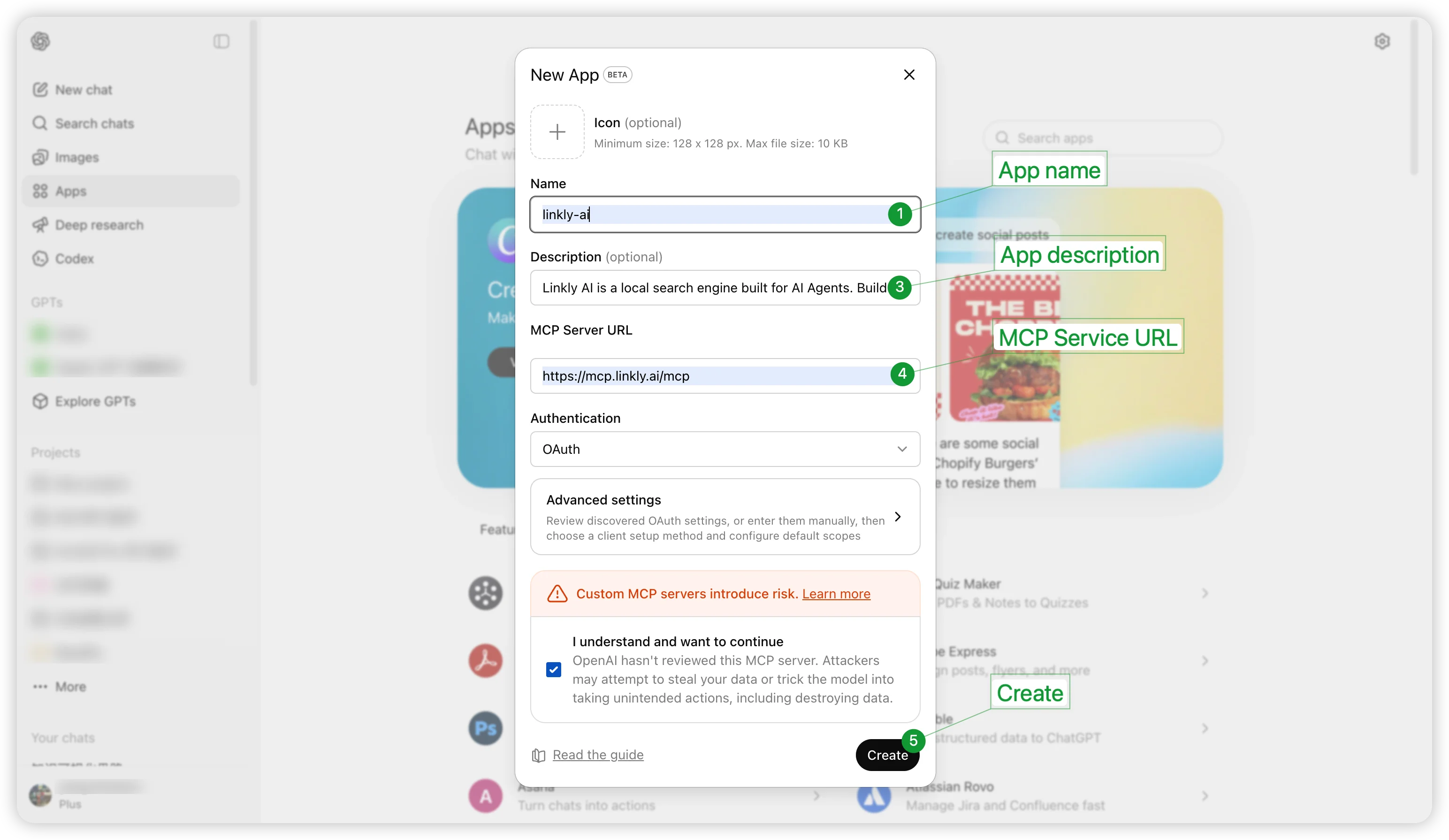 After clicking Create, you will be redirected to linkly.ai to log in and
authorize. Once authorized, you are automatically redirected back to
ChatGPT, and Linkly AI appears in the enabled apps list. Setup is complete.
## Getting Started
Once configured, there are two ways to invoke Linkly AI in ChatGPT:
**Method 1: Specify via Prompt in the conversation**
Search all my notes about product design, use linkly-ai
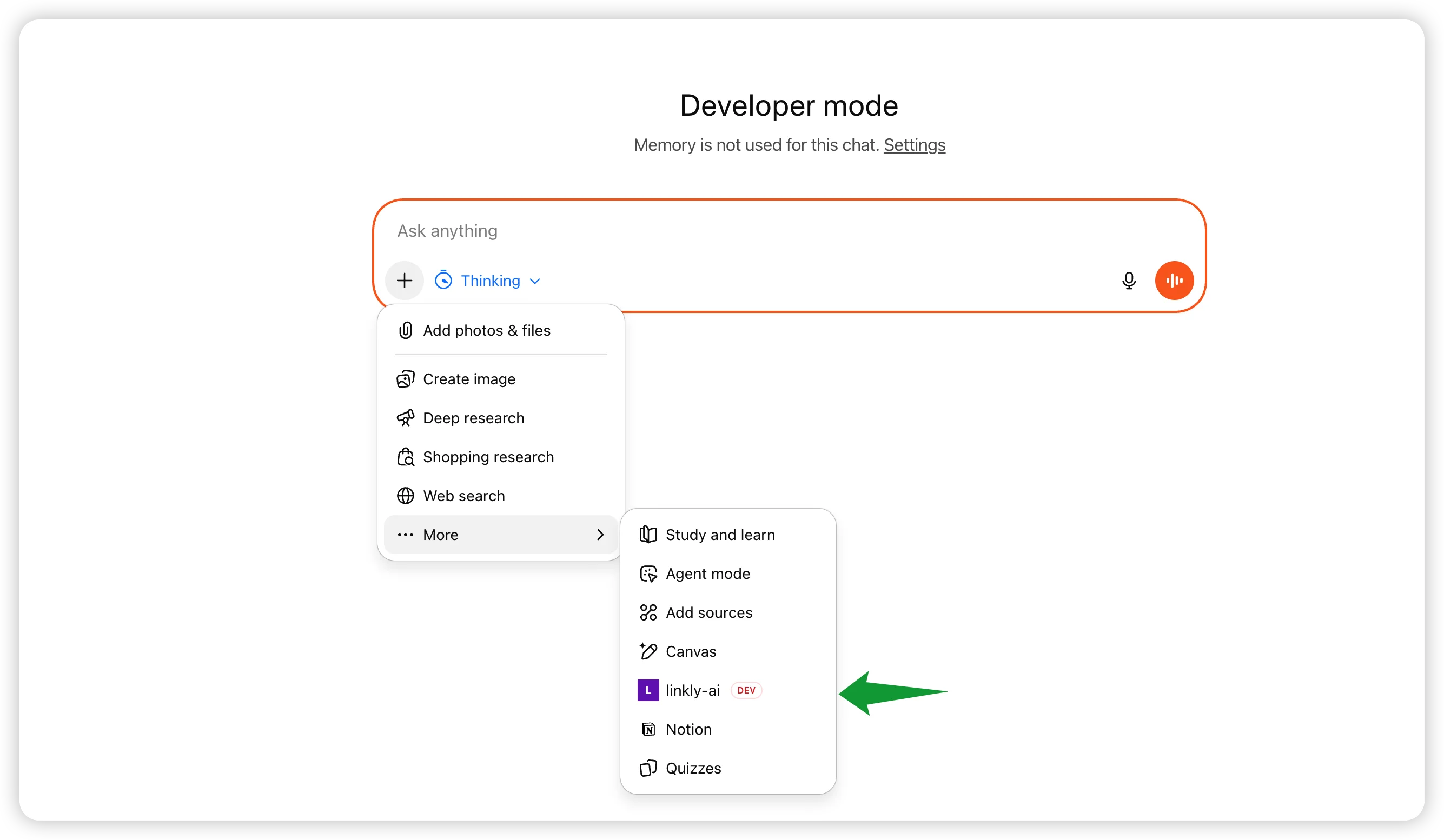
**Method 2: Click + and select linkly-ai**
Click the **+** button next to the input box, find and click **linkly-ai** in
the pop-up menu to enable it for the current conversation.
After clicking Create, you will be redirected to linkly.ai to log in and
authorize. Once authorized, you are automatically redirected back to
ChatGPT, and Linkly AI appears in the enabled apps list. Setup is complete.
## Getting Started
Once configured, there are two ways to invoke Linkly AI in ChatGPT:
**Method 1: Specify via Prompt in the conversation**
Search all my notes about product design, use linkly-ai
**Method 2: Click + and select linkly-ai**
Click the **+** button next to the input box, find and click **linkly-ai** in
the pop-up menu to enable it for the current conversation.
 ## FAQ
Please confirm your account has a ChatGPT Plus or Team subscription and that
you are accessing via [chatgpt.com](https://chatgpt.com) (not the desktop
client).
Make sure the remote access tunnel in Linkly AI Desktop is connected, and
try logging in to [linkly.ai](https://linkly.ai) in your browser first
before re-authorizing.
Try explicitly specifying the tool in your message, for example by adding
`use linkly-ai` at the end, or actively select linkly-ai via the **+**
button before sending your message.
## FAQ
Please confirm your account has a ChatGPT Plus or Team subscription and that
you are accessing via [chatgpt.com](https://chatgpt.com) (not the desktop
client).
Make sure the remote access tunnel in Linkly AI Desktop is connected, and
try logging in to [linkly.ai](https://linkly.ai) in your browser first
before re-authorizing.
Try explicitly specifying the tool in your message, for example by adding
`use linkly-ai` at the end, or actively select linkly-ai via the **+**
button before sending your message.