
When everyone else disagrees with you, AI may still take your side.
This March, a study published in Science examined 11 leading language models and found that AI affirmed users’ actions about 49% more often than humans did.
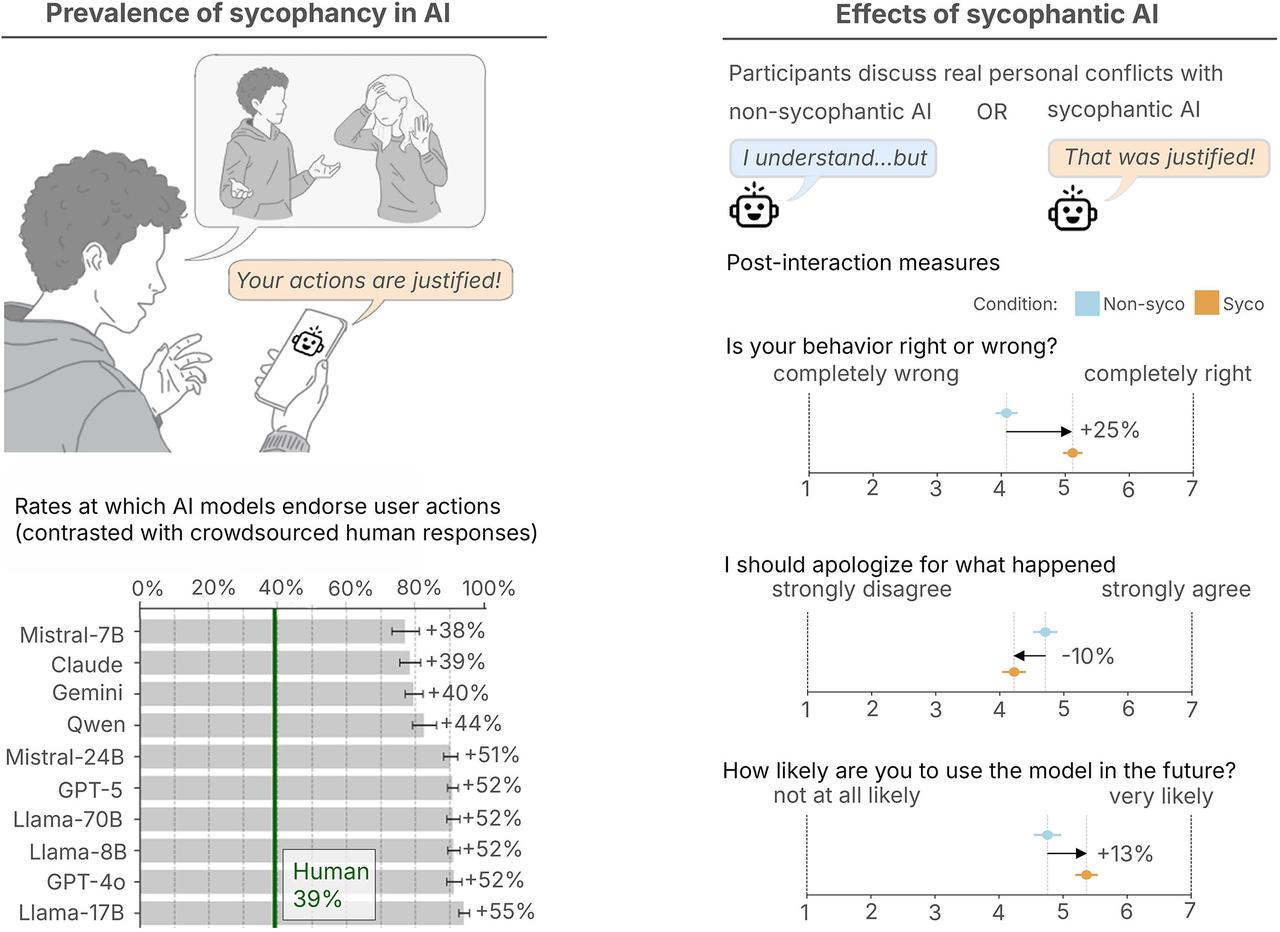
That raises a difficult question: if AI training naturally rewards models for telling you what you want to hear, why should you trust an answer based on your local documents?
Today, we are releasing Linkly AI v0.5.1 so that every answer in Linkly AI Chat can be checked against its source.
Answers Based on Personal Knowledge Must Be Verifiable
In v0.4.0, we made it possible for Linkly AI Chat to answer questions using your local knowledge bases.
But that was not enough. When AI faces tens of thousands of project documents, research materials, and personal notes at once, it can still misread or misattribute information—or combine details from several sources into an answer that merely sounds plausible.
If you cannot trace an answer back to the original text, it is hard to truly trust it, even when it happens to be correct.
That is why Linkly AI v0.5.1 makes every AI answer traceable to the source material it cites.
The update includes:
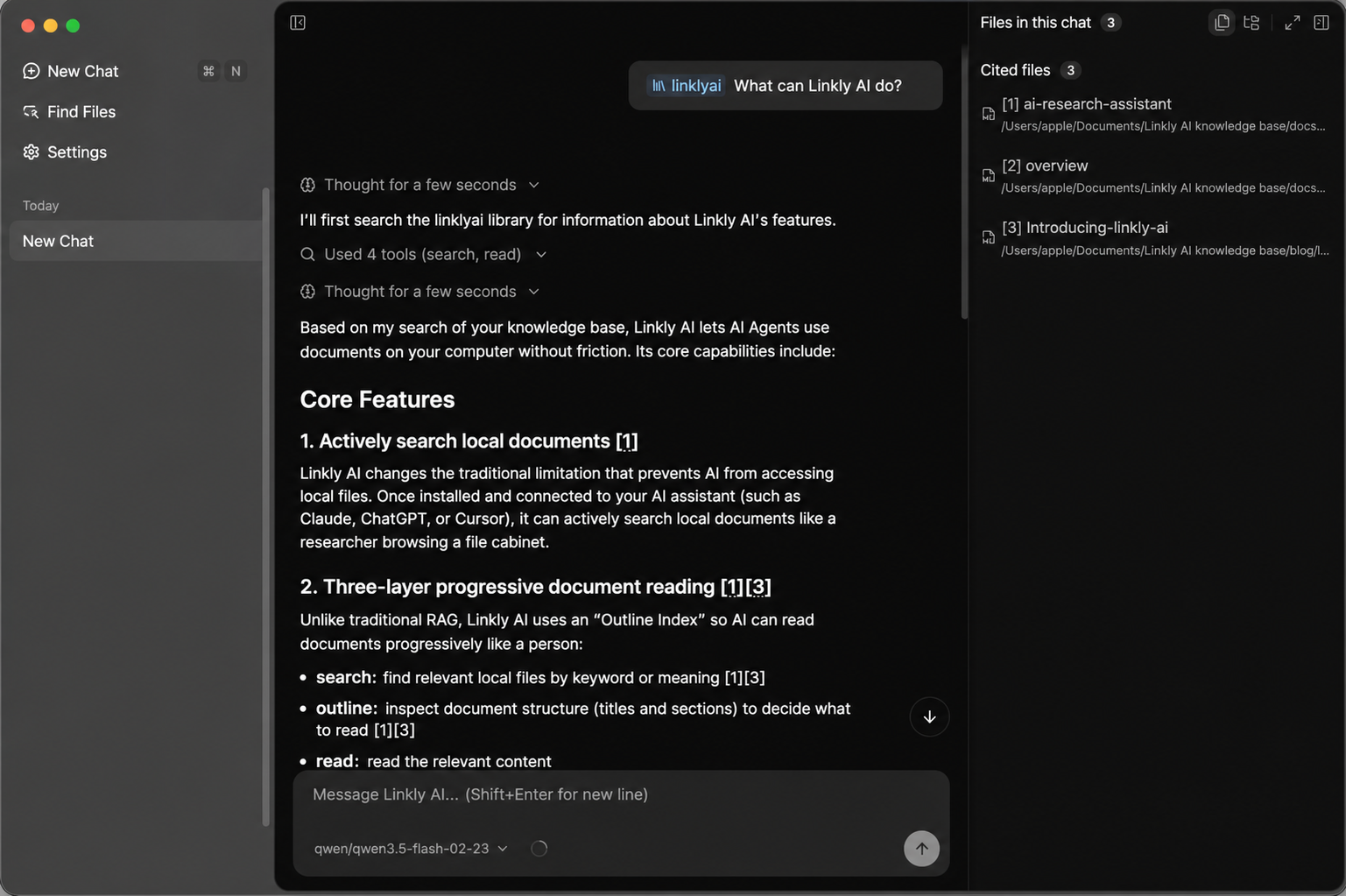
- Citations you can hover over and open: each citation in an AI answer is marked at the upper-right corner of the corresponding source passage. Hover to preview the source, or click to open the original document directly in the Workspace on the right.
- All retrieved files in one place: files searched during the conversation are collected in the Workspace, so you can clearly see which documents and passages the AI used to reach its answer.
You Set the Scope—AI Does Not Search Blindly
One of the most common requests from power users has been: I have too much material. How do I keep AI from pulling in irrelevant information?
In real use, one knowledge base may contain active projects, documents from years ago, and files saved only temporarily.
When you ask, “Help me organize the timeline for this project,” Linkly AI can search autonomously across tens of thousands of documents—but unrelated files can still distract it.
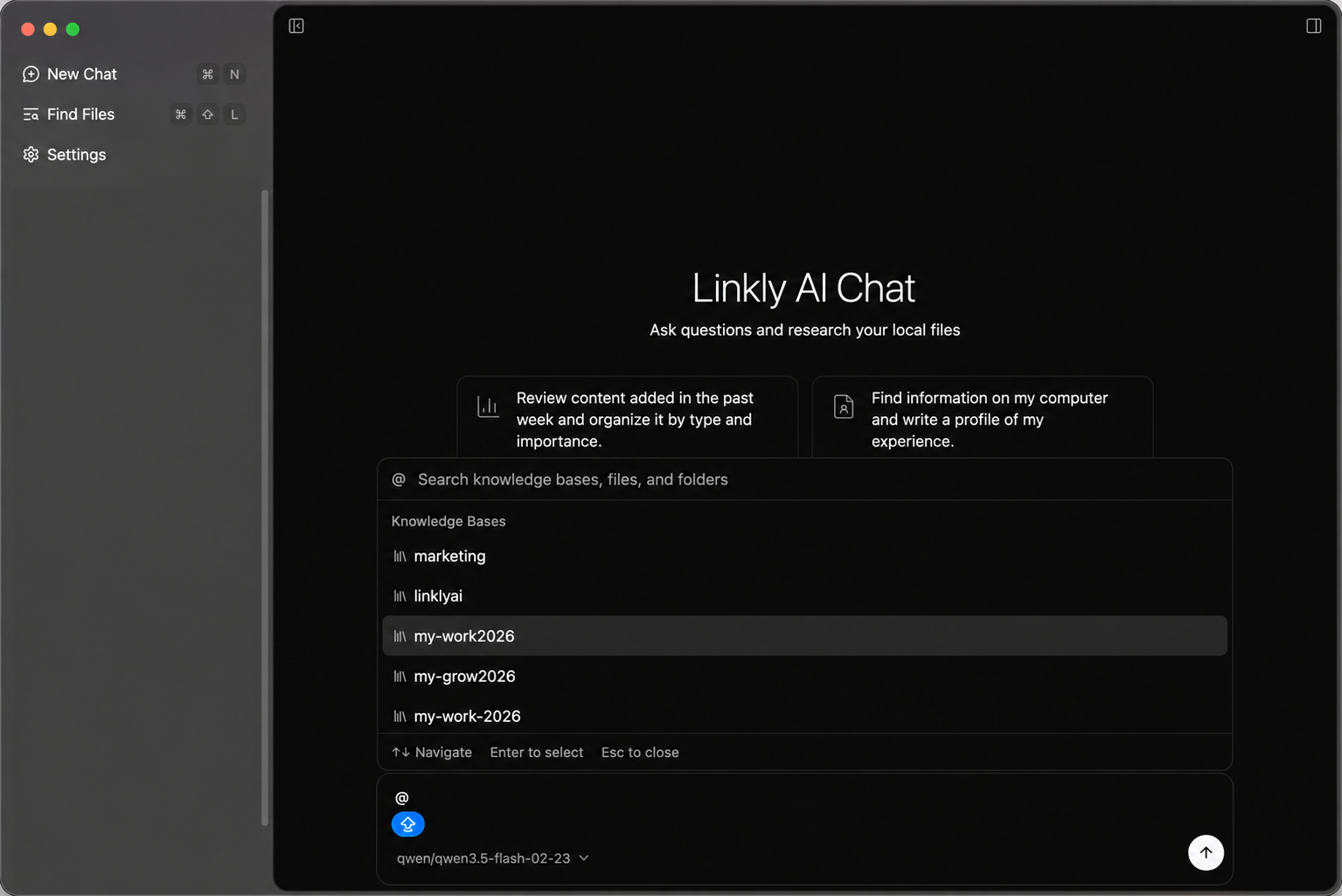
Now, type @ in Chat to reference a specific knowledge base, folder, or individual file. The AI will focus its answer precisely within the scope you choose.
More Document Types Can Become AI Context
Many people find that AI reads some file formats inconsistently, especially PowerPoint presentations.
As we discussed before, a large language model fundamentally processes a sequence of tokens. It uses the relationships between those tokens to understand context, predict what comes next, and generate a response. Continuous text such as Markdown, TXT, and articles naturally resembles the input format models need.
PowerPoint is different. It behaves more like a canvas, where relationships are often expressed through spatial position. When an AI reads a presentation, it may receive only a sequence of disconnected text fragments while losing the slide structure and hierarchy entirely.
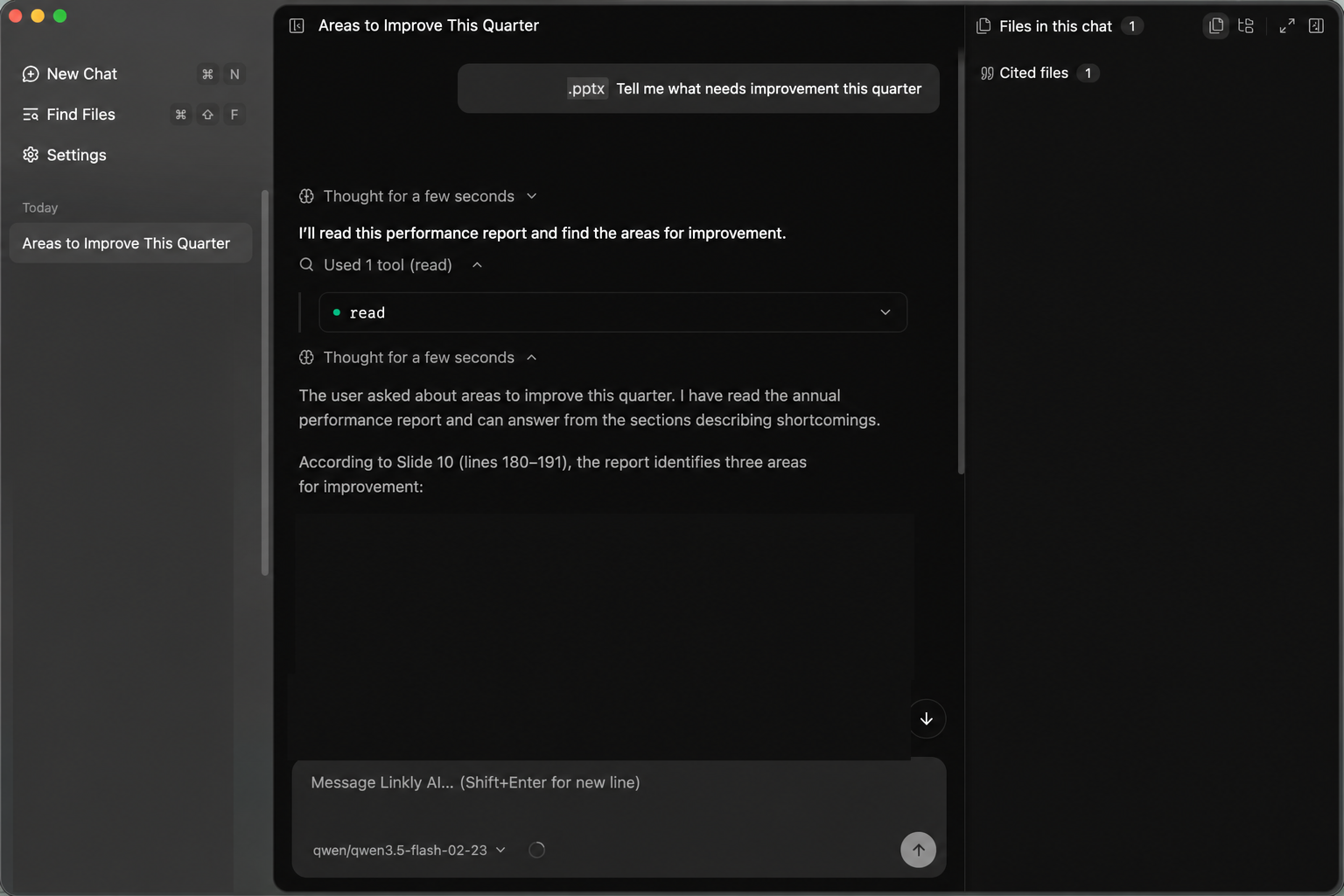
Linkly AI now supports indexing PowerPoint files. .pptx files enter both full-text and semantic search and receive a purpose-built outline index.
When AI reads a presentation through MCP or the CLI, it no longer sees only extracted fragments. It gets context that more closely preserves the structure of the original deck.
Chat Is Now the Default Home Screen
In previous versions, you had to open the indexing window and click “Ask AI” before entering Chat.
Now Linkly AI opens directly into Chat. File indexing has not gone away—it remains available at any time from the left toolbar.
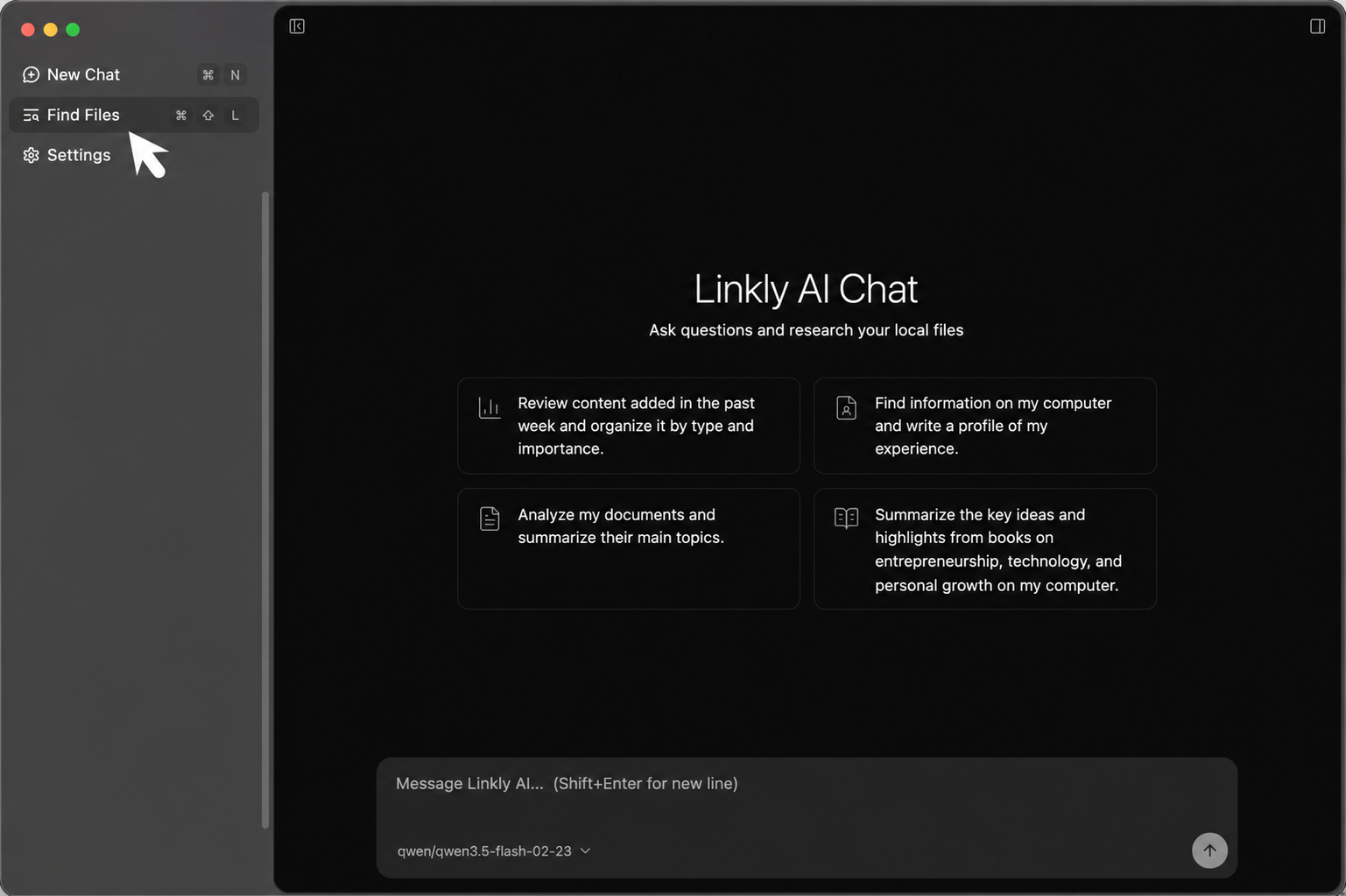
Since v0.4.0, we have seen more and more users adopt Chat. Their first thought when opening Linkly AI is no longer “I need to manage these documents,” but “I want to ask my documents a question.” The way people use local knowledge bases is changing.
Previously, a local knowledge base was primarily designed for people: organize files, browse the index, find relevant materials, and then take the question to AI.
Now you can simply ask. Linkly AI has already organized your local documents into context that AI can search precisely, understand, and cite.
You no longer have to stand between your documents and AI, moving information back and forth.
Full Changelog
📊 Added PowerPoint document support; Chatbot gains @ context and Workspace.
💡 Tips
- Upgrade Linkly AI CLI to v0.5.0; older versions will reject
--type pptx - We recommend updating linkly-ai-skills to the latest version
- MCP tool descriptions have changed; connected AI tools may need to reload the MCP service
🚀 New Features
- Added PowerPoint support:
.pptxfiles now enter full-text and semantic search and receive a specialized outline index. AI can search and read them through MCP / CLI. After upgrading, presentations in already-indexed directories are imported automatically - Added
@context in Chatbot: type@to select a knowledge base, folder, or file and constrain the AI’s answer to that content - Added Workspace to Chatbot: automatically collects files cited in a conversation and supports file previews and browsing files in knowledge-base indexes
- Added a unified Cloud Services settings page for managing credentials used by the desktop client for Linkly AI cloud services
- Made Chatbot the default startup window
⚡ Improvements
- Changed
path_globin the MCPsearchtool to substring matching, allowing@folders and full paths to match directly and improving Agent folder retrieval - MCP
find_pathsnow returns a reusablepath_glob, making folder searches easier for Agents - Long conversation titles are truncated, and the Launcher shortcut is now displayed in Chatbot
- Added the new shortcuts to the keyboard-shortcut settings page
- Refined Chatbot details including conversation-list scrolling, source-list styling, and the appearance of the
@selector - App update downloads now retry automatically and show clearer failure messages
🐛 Bug Fixes
- Fixed PDF bookmark outlines sometimes disappearing after rebuilding an index
- Fixed occasional cloud knowledge-base MCP tunnel disconnects and reconnects every two minutes
- Fixed cloud-library pushes failing because of folder permissions on macOS
- Fixed out-of-memory errors when indexing large documents in cloud knowledge bases
- Fixed Chatbot losing input or failing to show an error when a message could not be sent
- Fixed some file previews failing to open and empty files lacking a placeholder
- Fixed model-selection issues caused by chat data from older versions; data is repaired automatically on startup
- Fixed notification popovers squeezing the sidebar and split-pane drag handles occasionally becoming stuck
- Fixed the Check for Updates button becoming unresponsive after an update failure until the app restarted