Muse is one of the AI apps attracting attention lately. At the time of this demo, it had reached the top of the U.S. App Store’s free apps chart.
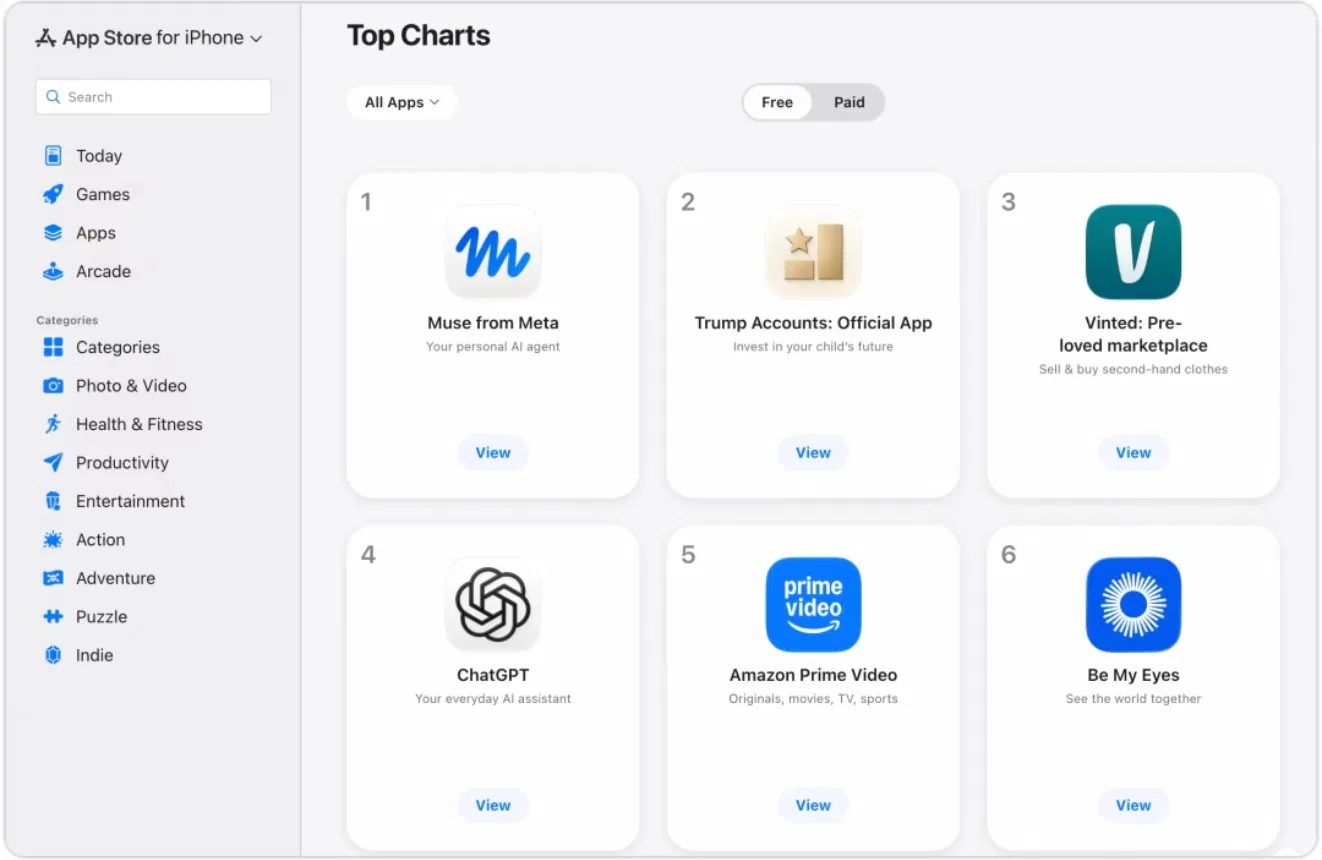
Illustrations have been localized from the original screenshots.
But intelligence alone isn’t enough for Muse to help with something personal. If you want it to make sense of your recent thoughts, it needs to know what you’ve experienced and how you thought about things before.
That background is hard to explain in a sentence or two. Yet it may already be in your journals and notes. Every time you switch to a new AI, you have to find those records and hand them over again.
Could Muse read that material directly, without making you explain everything from scratch?
In this demo, we used Linkly AI to connect Muse to personal files. No coding was required: we started with one prompt, then followed the setup instructions.
Once connected, Muse can use accessible journals and notes to understand your experiences and ideas. It can also turn new discussions into notes and save them back to Linkly AI.
Here’s the setup, along with a closer look at what Muse actually read in this example.
Step 1: Enable remote access in Linkly AI
Open Linkly AI, click the small robot icon labeled Agent usage in the sidebar, and enable Allow remote access.
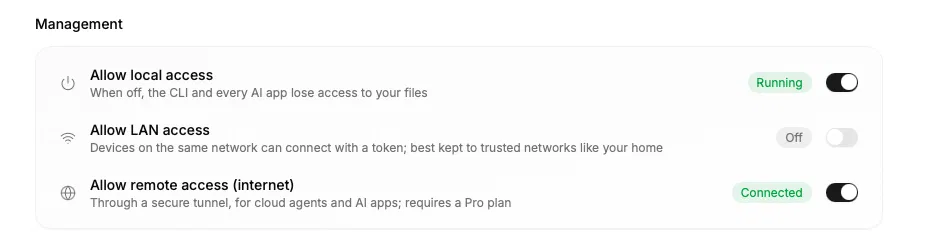
The remote access feature shown here requires a Pro plan. Linkly AI Desktop must stay running when accessing a local knowledge base. Access to a cloud knowledge base does not depend on local files being online.
Step 2: Connect to Linkly AI with one prompt
Type this into Muse:
Help me connect to Linkly AI’s MCP.
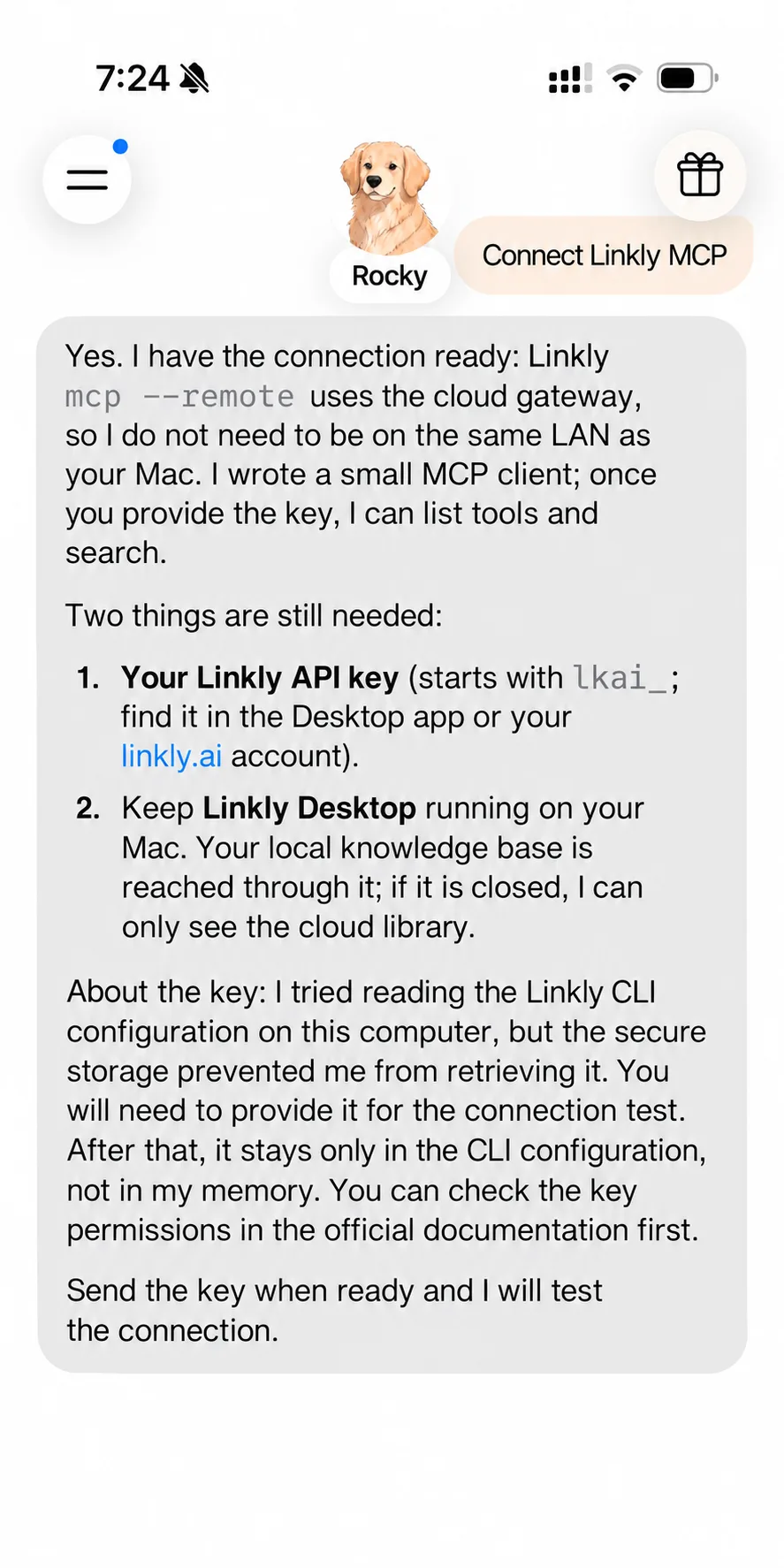
Muse will try to configure the connection. You can also give it the official Linkly AI setup guide and ask it to follow the documented steps.
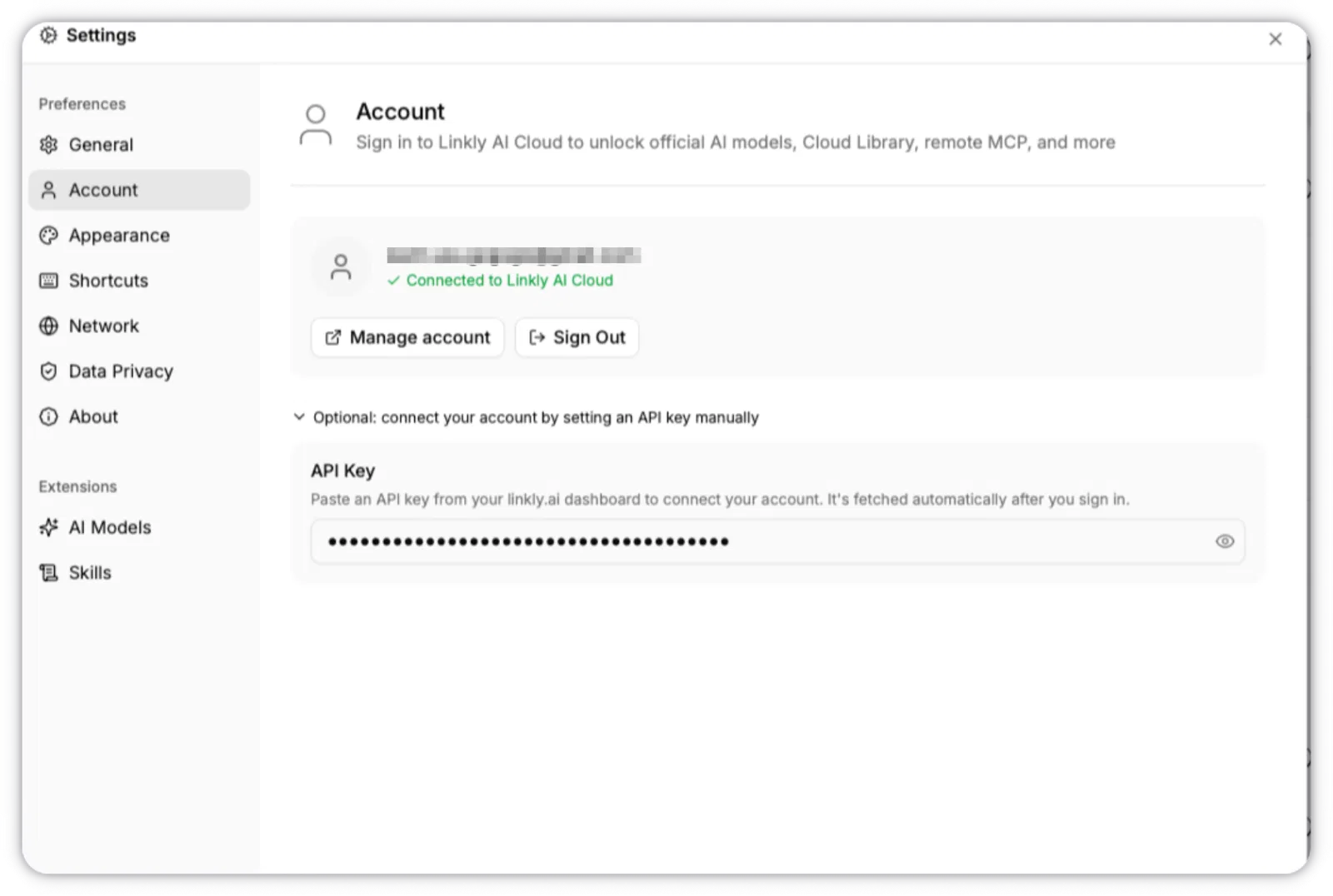
Step 3: Get your Linkly API key
In the setup flow used for this demo, Muse asks for a Linkly API key after configuring the cloud connection.
Open Linkly AI, go to Settings → Account, get your key, and follow the connection prompts to authenticate.
Step 4: Install Linkly AI Skills
After authentication, Muse prompts you to install Linkly AI Skills. Choose to install them. Muse is now connected to your Linkly AI knowledge base.
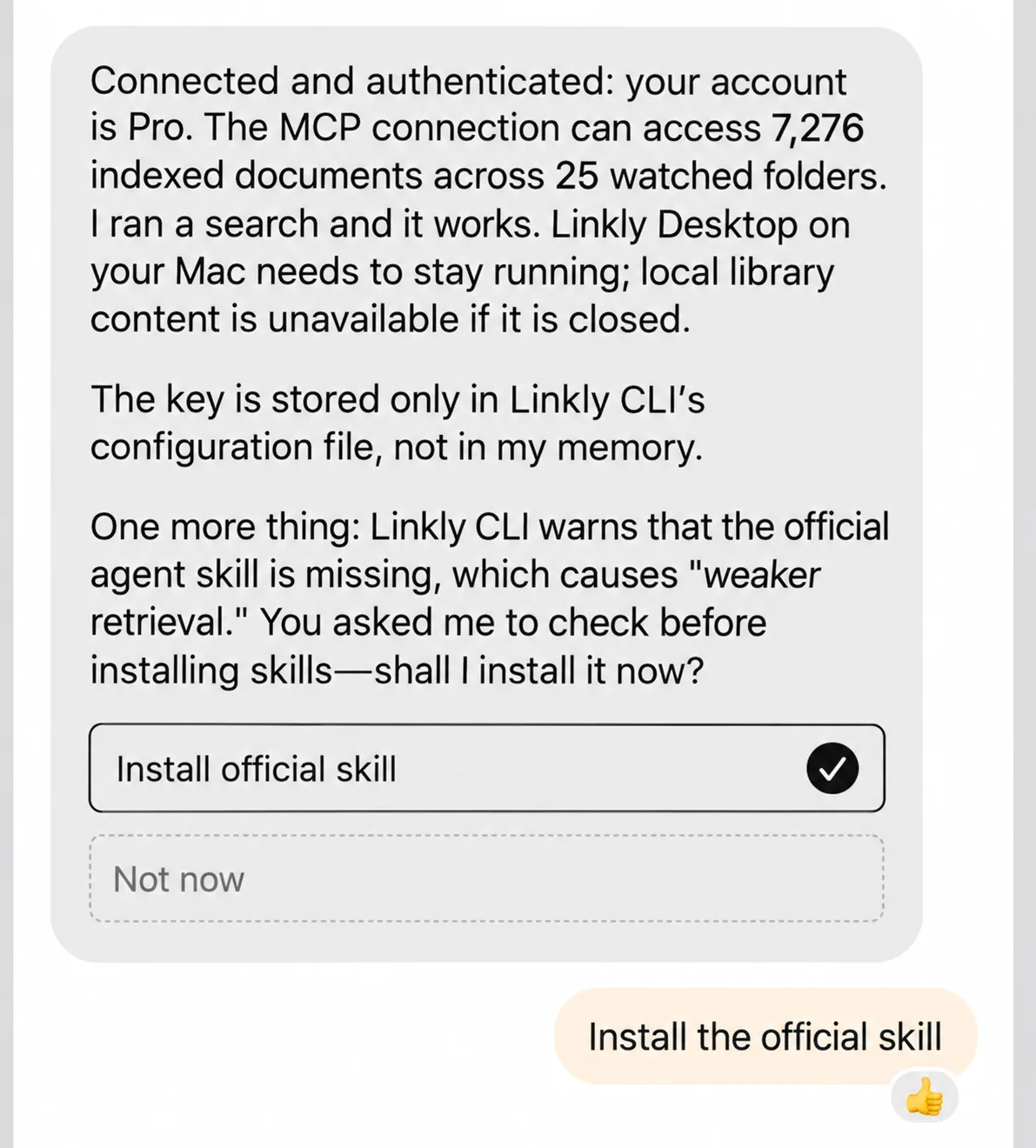
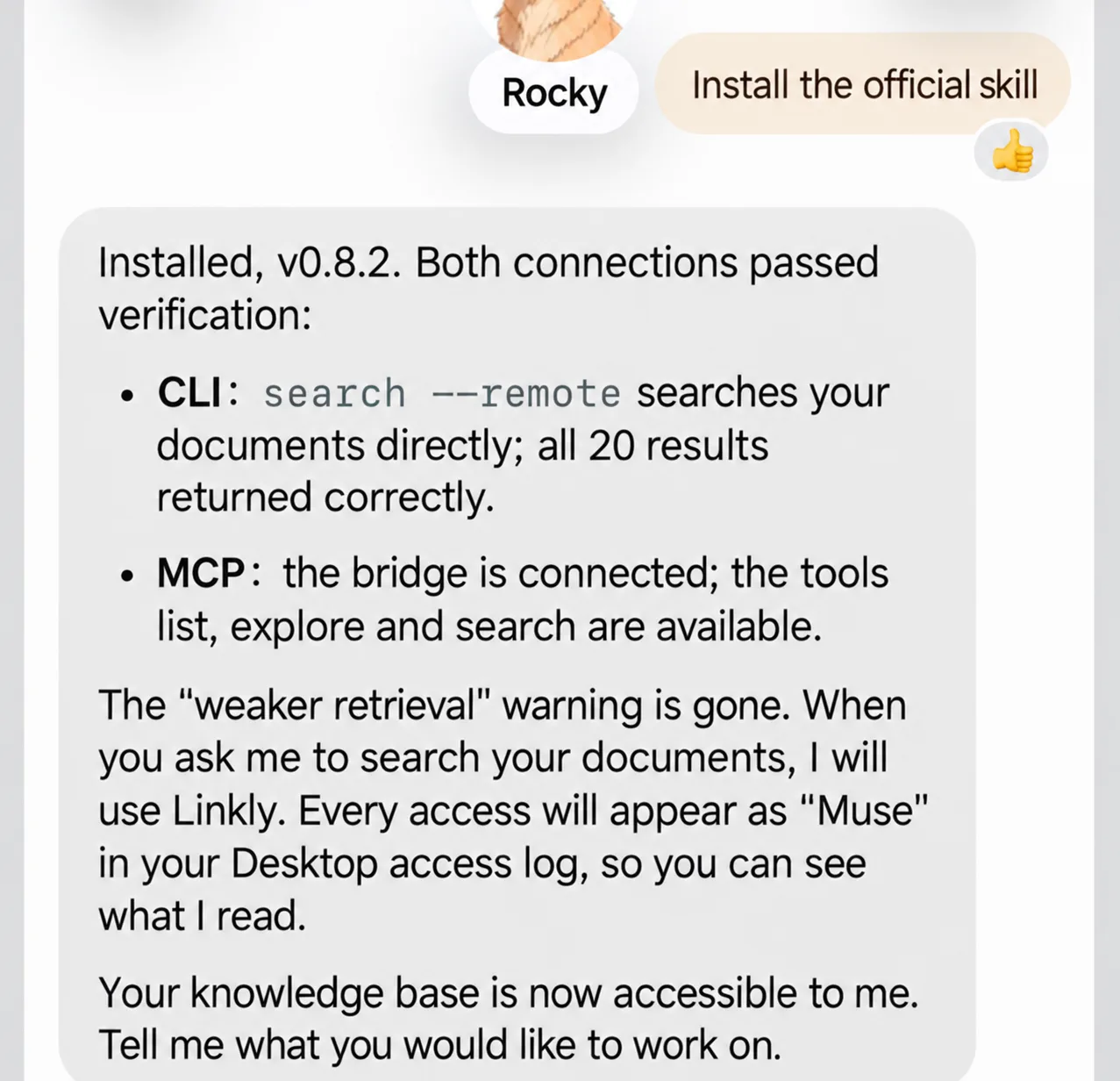
You can now ask Muse to work with material you’ve already collected, without uploading the files again each time.
What can Muse do once it’s connected?
We tried three scenarios.
1. Use older records to understand your background
If you already have notes in Linkly AI, Muse can read them after connecting. You don’t have to upload them one at a time or paste everything into the conversation.
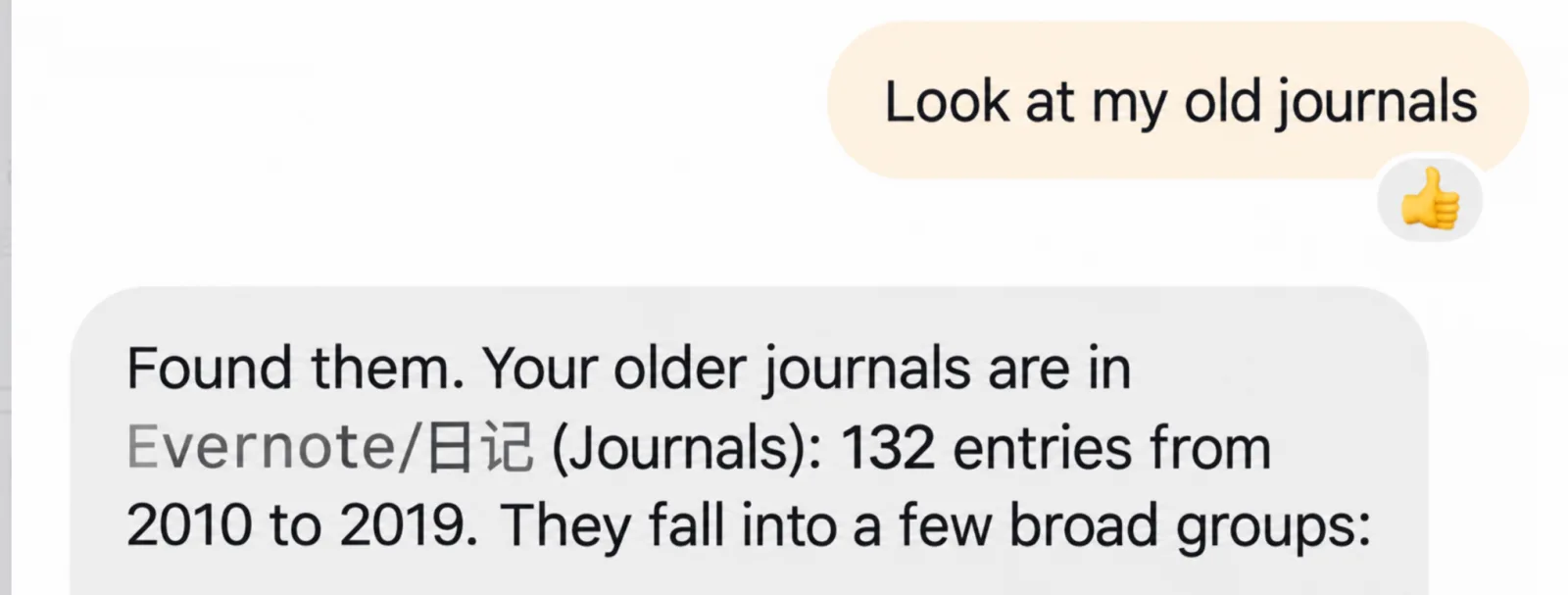
In this demo, Muse found 132 journal entries from 2010 to 2019. It also explicitly explained a limitation: the journal bodies were still cloud placeholders. It had read their titles, plus the full text of Linkly notes from August and September. It used that accessible material to identify the user’s interests and ways of thinking.
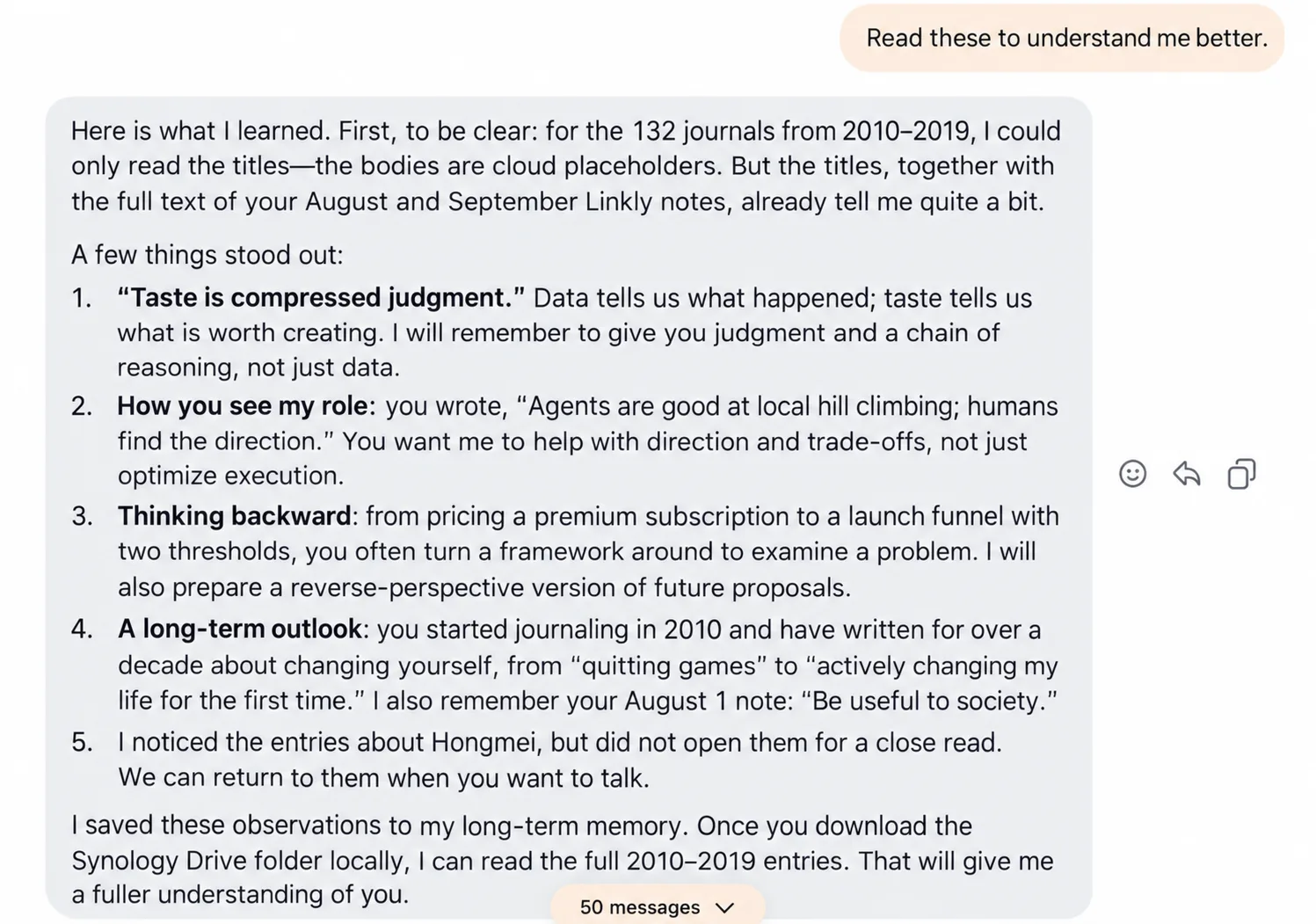
This example shows how existing material can supply personal context. It does not demonstrate reading all 132 journal entries in full. To read the contents of cloud placeholder files, first download the files locally.
2. Answer questions with personal context
After reading older material, Muse can draw on it when answering questions. You might ask it to revisit your thinking over a period of time, trace how your views on a subject have changed, or connect today’s discussion to earlier notes.
Your files become more than things to search for. They become context that helps AI understand you.
3. Save new notes so the record keeps growing
The connection works in both directions.
Besides reading existing files, Muse can turn a discussion into a note and save it to Linkly AI Notes. At the end of a conversation, for example, you can say:
Turn the main ideas we just discussed into a note and save it to Linkly.
Once Muse saves the note, you can see it in Linkly AI.
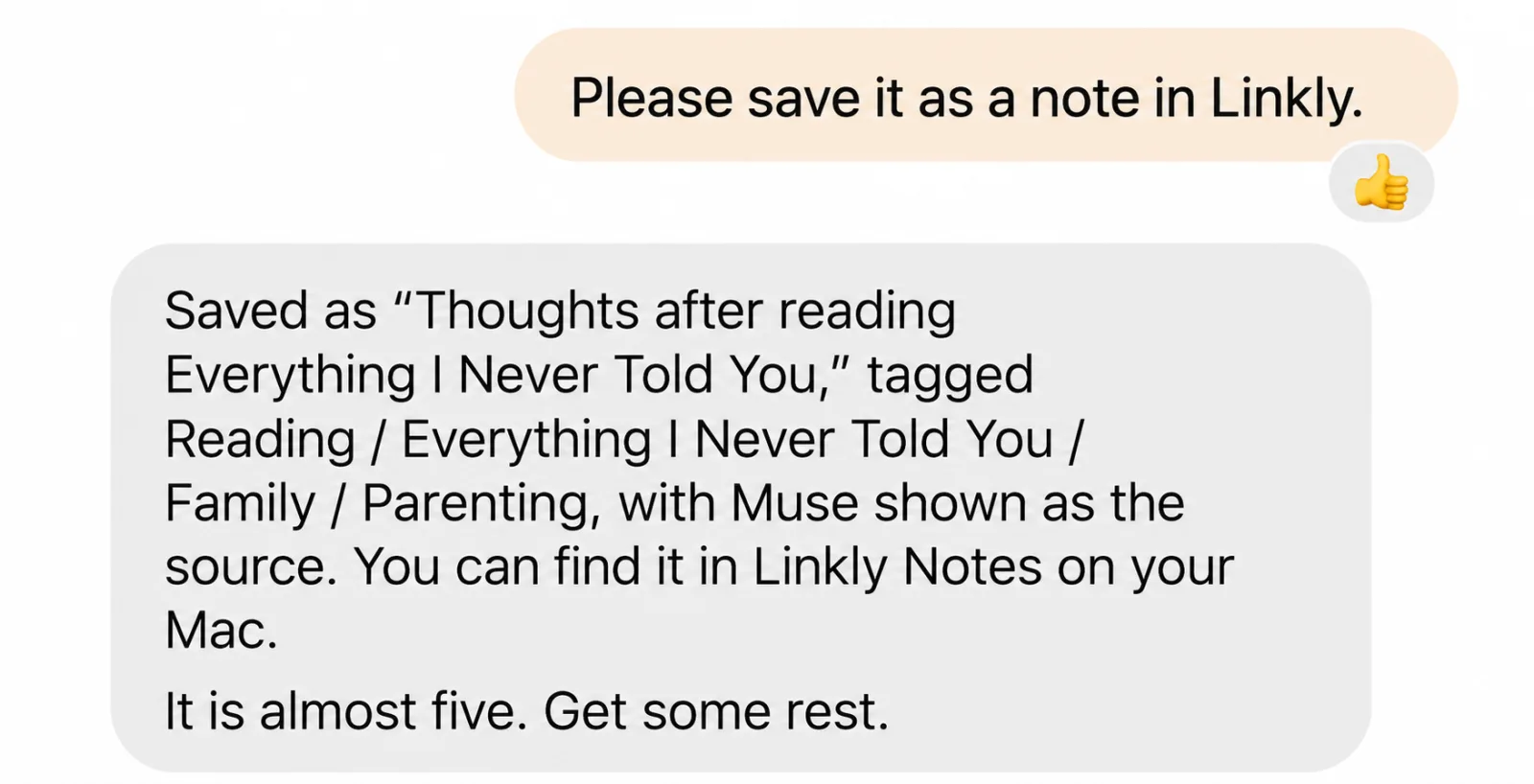
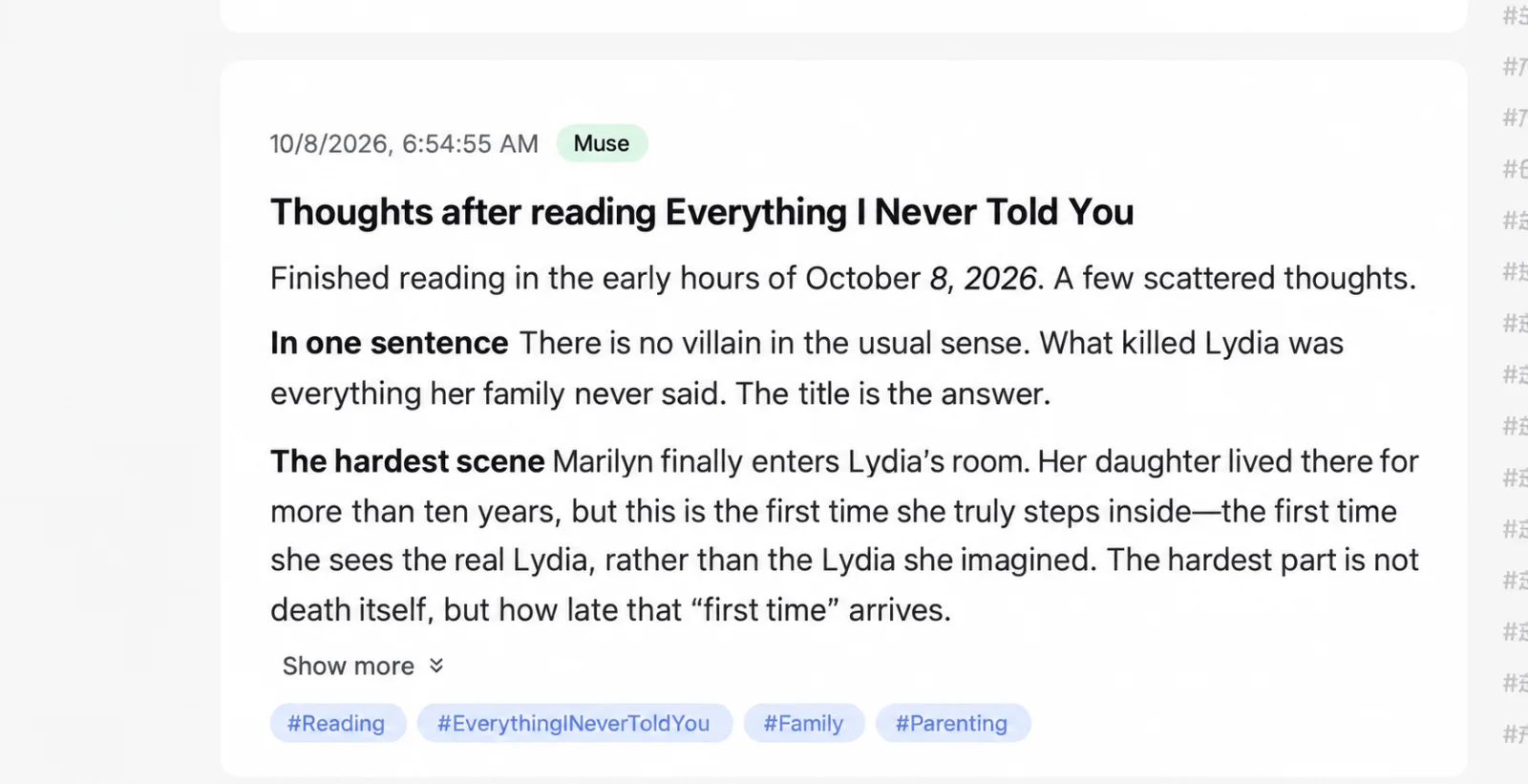
Today’s discussion can become context for the next conversation. Older material stays useful, and new knowledge keeps accumulating.
See which files AI has read
Privacy and control matter when you let AI access personal material.
In Linkly AI, you can check Muse’s file access history to see what it read. This makes its use of your knowledge base more transparent and helps you spot unexpected access.
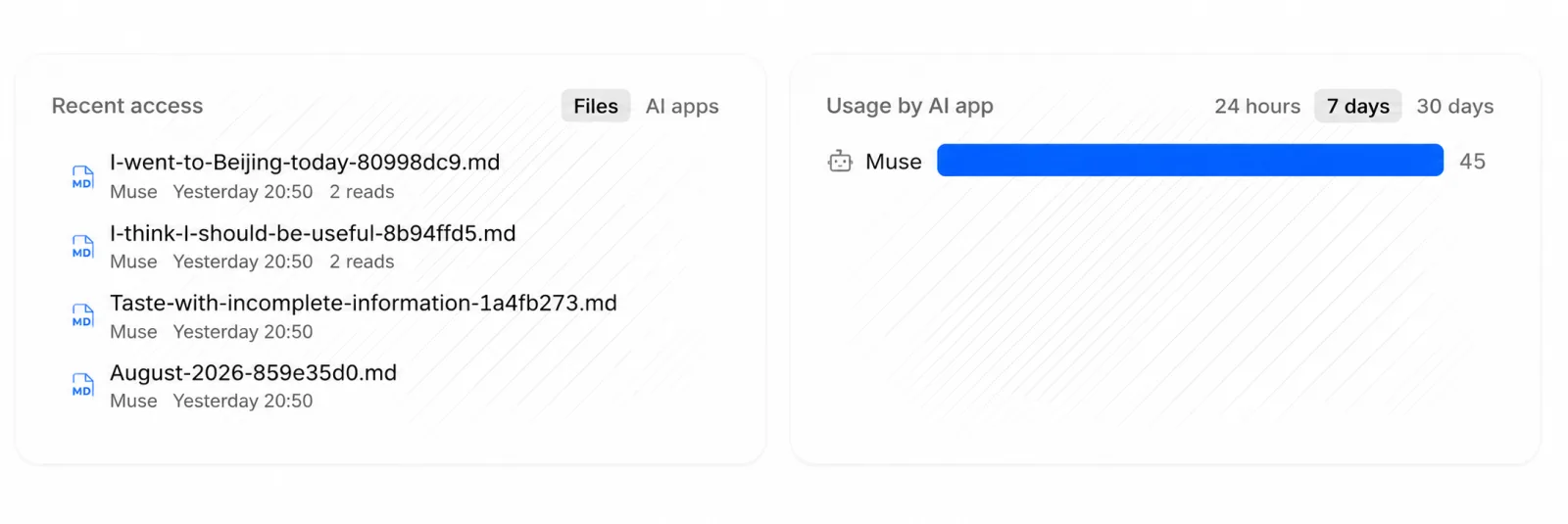
Linkly AI connects your personal knowledge to AI, so the files, notes, and knowledge you’ve collected can keep being useful across different AI tools.
Your files, available to every AI.
Try Linkly AI.