What You Can Do
Turn your private notes into ChatGPT's memory
Turn your private notes into ChatGPT's memory
No more manually pasting context — just ask “What ideas have I written about XX? use linkly-ai”, and Linkly AI’s
search tool will search across all your notes on your computer, providing the relevant content to ChatGPT so it can give you well-grounded answers.Write articles or reports based on local materials
Write articles or reports based on local materials
Let ChatGPT retrieve and read your relevant notes and documents on your computer through Linkly AI, then generate article drafts, speech scripts, or email replies — content sourced from your actual private materials, not generated from thin air.
Quickly distill conclusions across multiple documents
Quickly distill conclusions across multiple documents
You can have ChatGPT read meeting records and research reports stored on your computer. Linkly AI handles
search and read, letting ChatGPT synthesize the answers — no need to flip through documents one by one.Prerequisites
- ChatGPT Plus or Team subscription
- To read documents on your computer: completed remote access configuration, with the desktop tunnel showing ● Connected
- To use only cloud libraries: no tunnel needed, and the desktop app doesn’t have to be running
Configuration Steps
1
Open Apps settings
On chatgpt.com, click Apps in the left sidebar to
open the settings panel.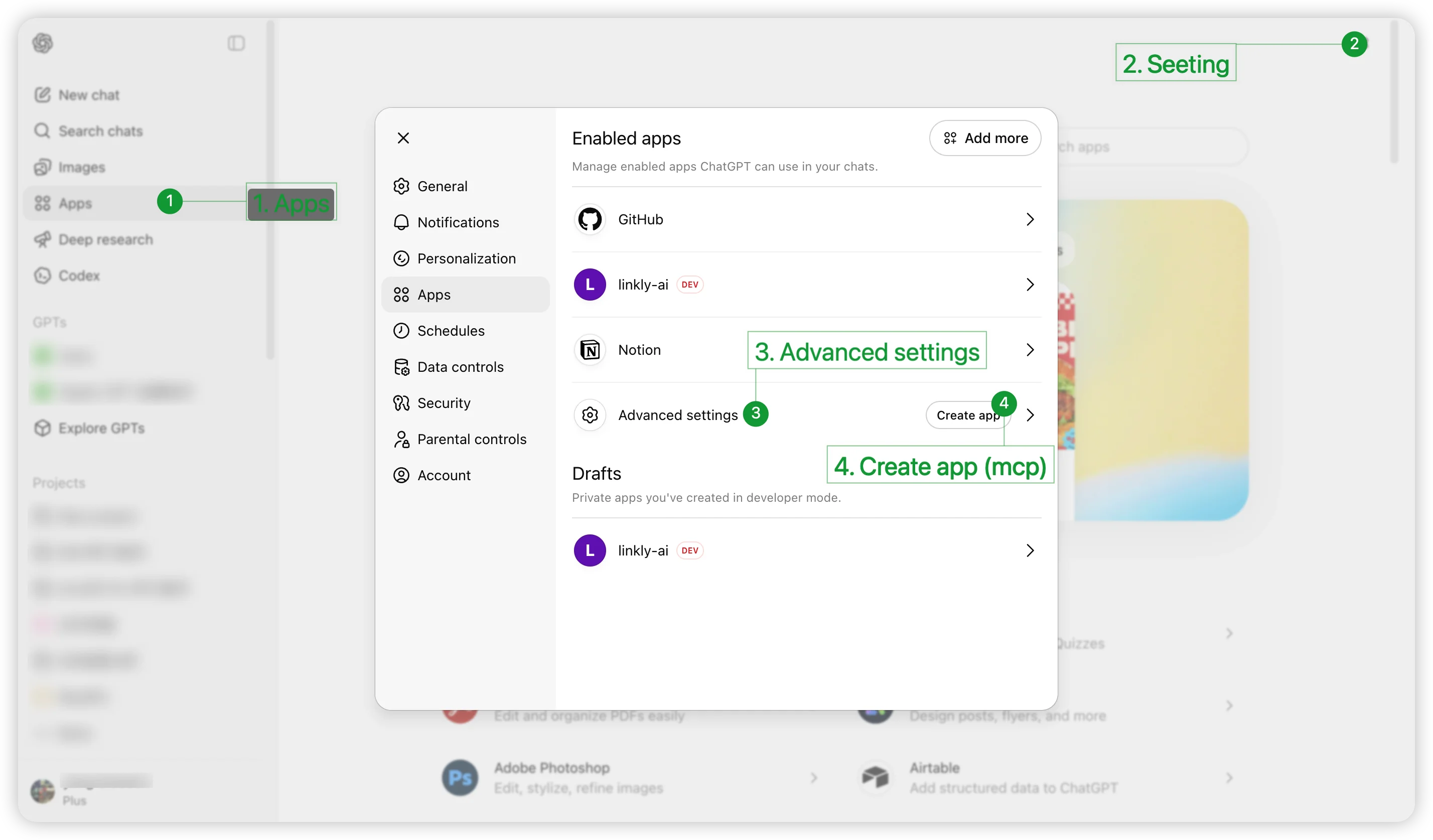
2
Enable Developer mode
In the settings panel, click Advanced settings, then toggle Developer mode on. Once enabled, the Create app button will appear on the page.
3
Create the App
Click Create app and fill in the following: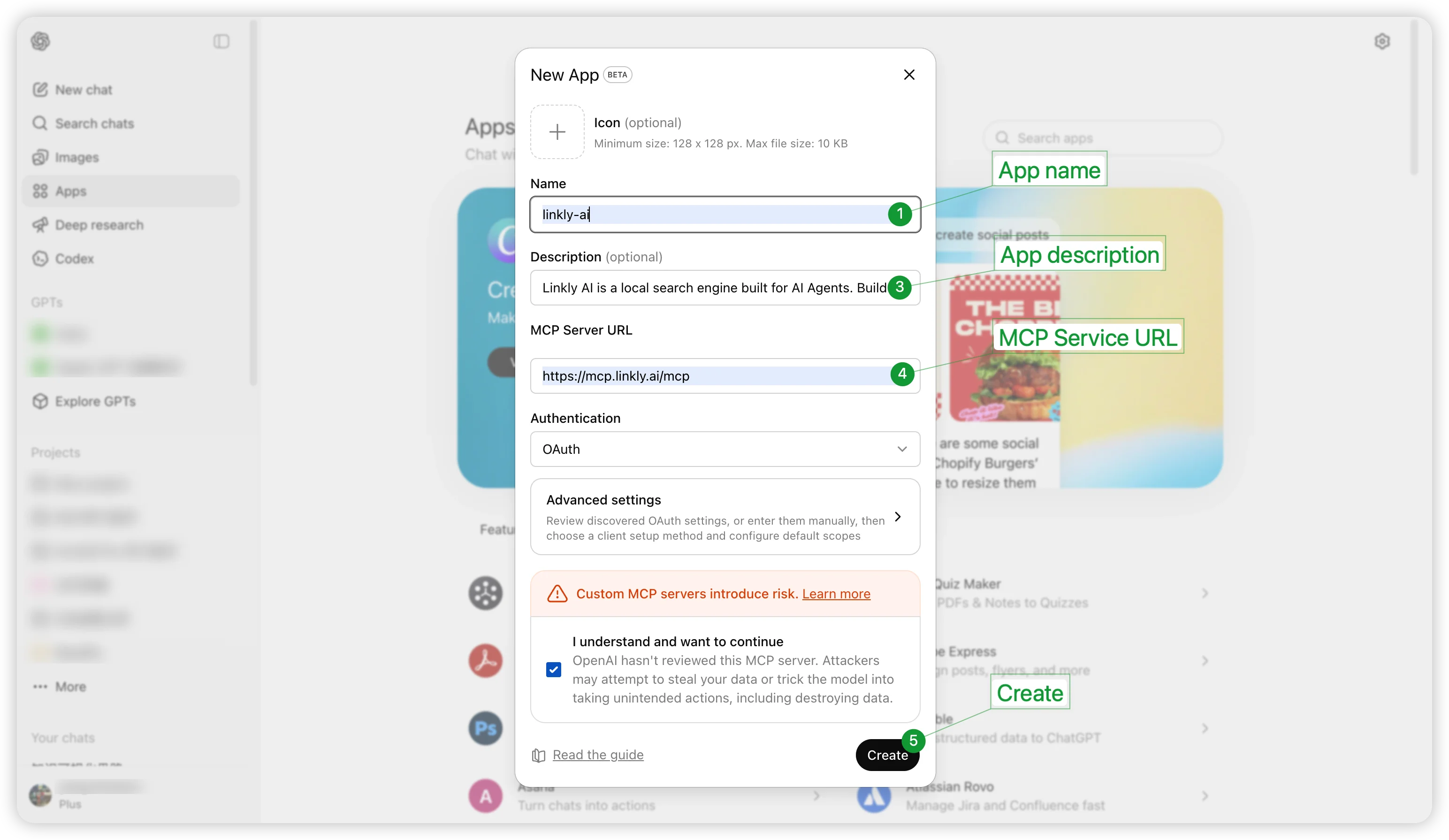
-
Name:
linkly-ai -
Description (optional, recommended so the model understands its purpose):
-
MCP Server URL:
https://mcp.linkly.ai/mcp -
Authentication: select
OAuth - Check I understand and want to continue
- Click Create
4
Complete OAuth authorization
After clicking Create, you will be redirected to linkly.ai to log in and authorize: a new account signing in for the first time sets a display name and username first; the authorization page states which domain you’ll be redirected to after you allow access (it should be
chatgpt.com); confirm, then click Allow. You are then automatically redirected back to ChatGPT, and Linkly AI appears in the enabled apps list. Setup is complete. To stop using it later, revoke it under Authorized apps on the Integrations page of the dashboard.Getting Started
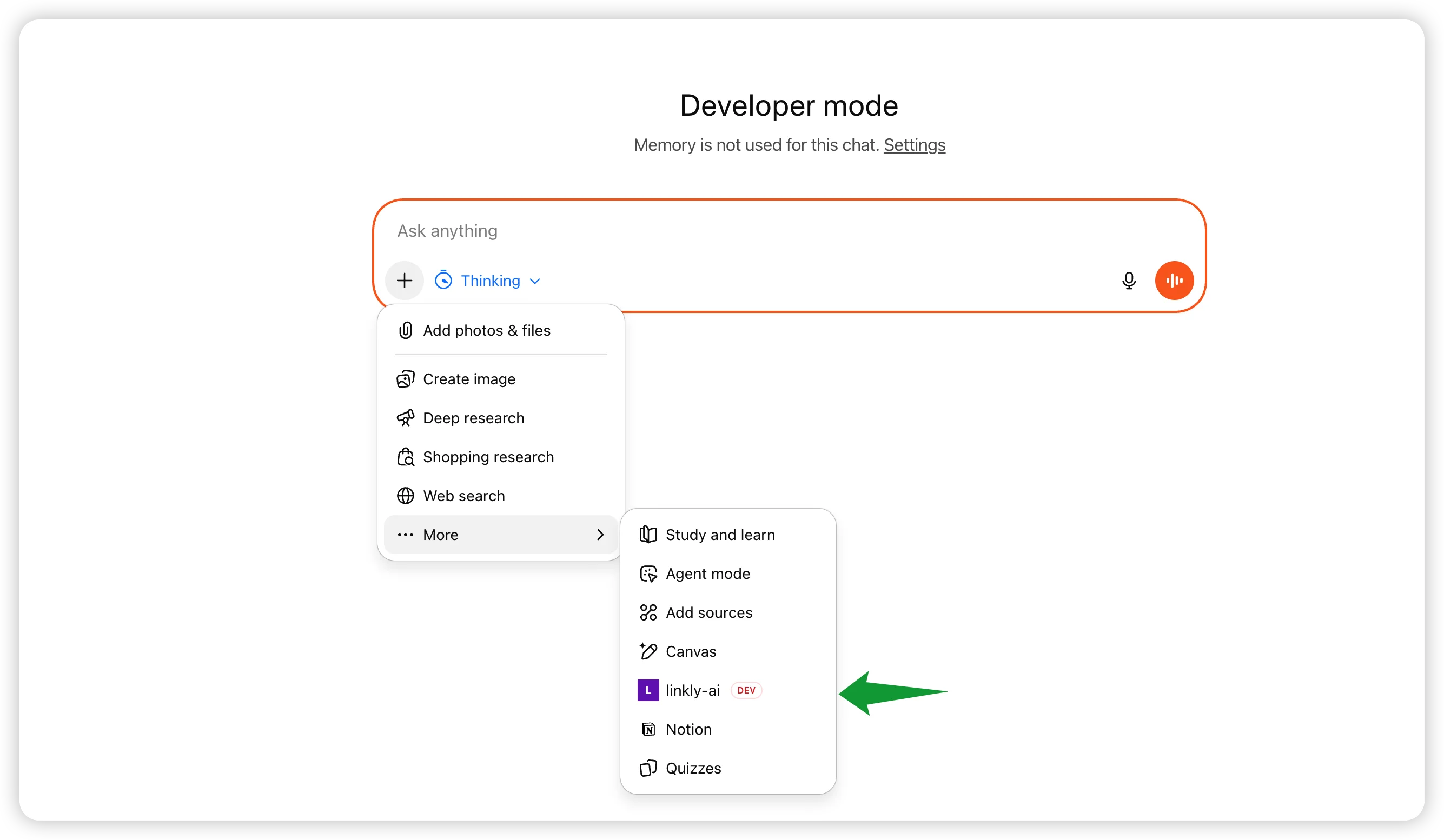
Once configured, there are two ways to invoke Linkly AI in ChatGPT: Method 1: Specify via Prompt in the conversationSearch all my notes about product design, use linkly-ai
FAQ
Cannot find Advanced settings or Developer mode
Cannot find Advanced settings or Developer mode
Please confirm your account has a ChatGPT Plus or Team subscription and that you are accessing via chatgpt.com (not the desktop client).
ChatGPT does not call the Linkly AI tools
ChatGPT does not call the Linkly AI tools
Try explicitly specifying the tool in your message, for example by adding
use linkly-ai at the end, or actively select linkly-ai via the + button before sending your message.