

What You Can Do
Retrieve local materials in automated tasks
Retrieve local materials in automated tasks
When creating tasks in QoderWork, use the Linkly AI Connector to let AI first search local documents, then combine browser automation, file processing, and other tools to complete complex workflows grounded in real materials.
Multiple connectors working together
Multiple connectors working together
Combine Linkly AI with Slack, Microsoft 365, Calendar, and other Connectors to access both local documents and online services in a single task — breaking down information silos.
No need to re-upload documents
No need to re-upload documents
Configure once, then share the same local knowledge base across all tasks and conversations in QoderWork. AI retrieves on demand — no need to upload attachments every time.
Prerequisites
- QoderWork installed
- Linkly AI Desktop running with the MCP service active
Configuration Steps
- Local MCP HTTP (Recommended)
- Remote MCP
- CLI Stdio (Fallback)
1
Open the Connectors page
Click Extensions → Connectors in the left navigation.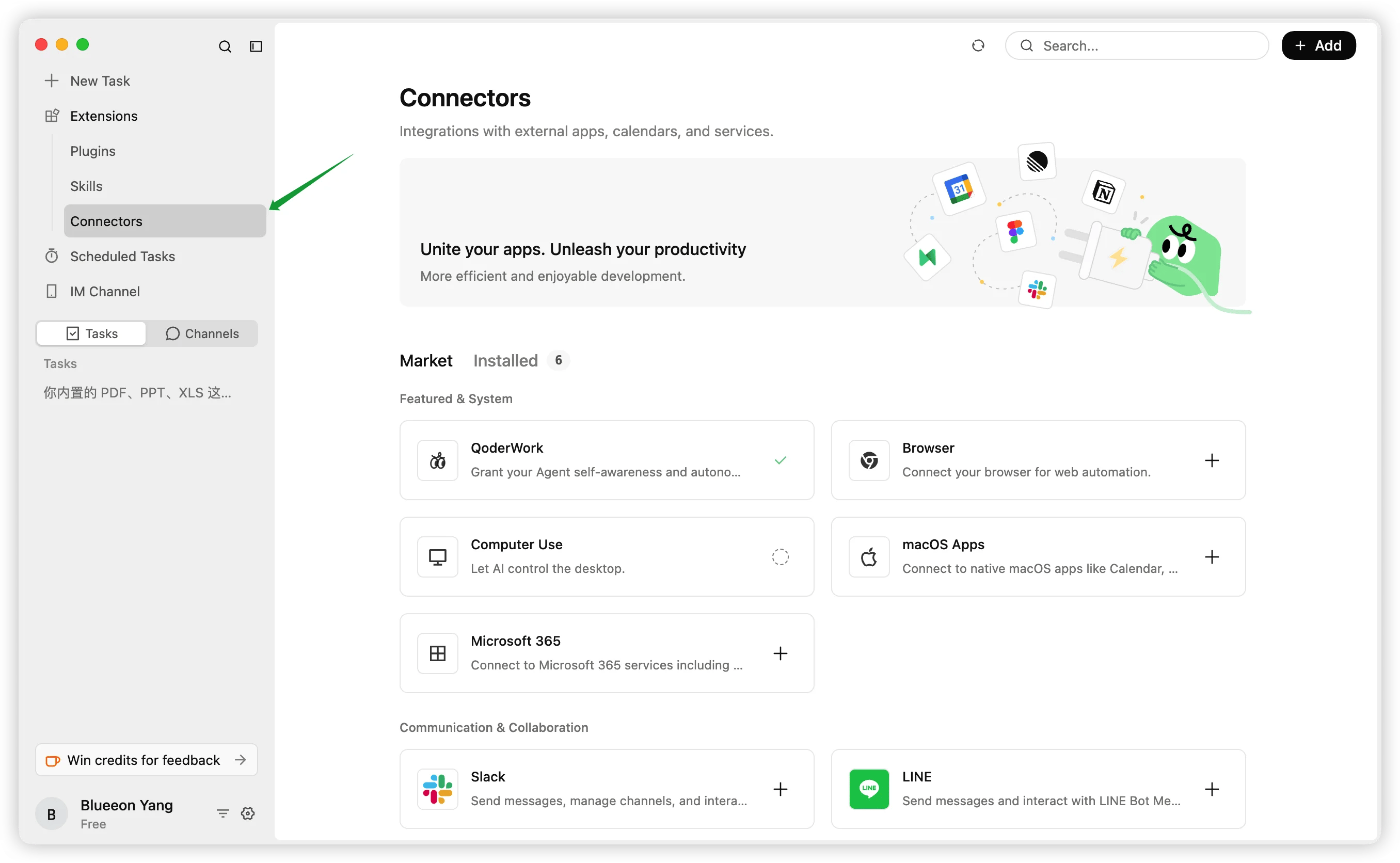
2
Add a new connector
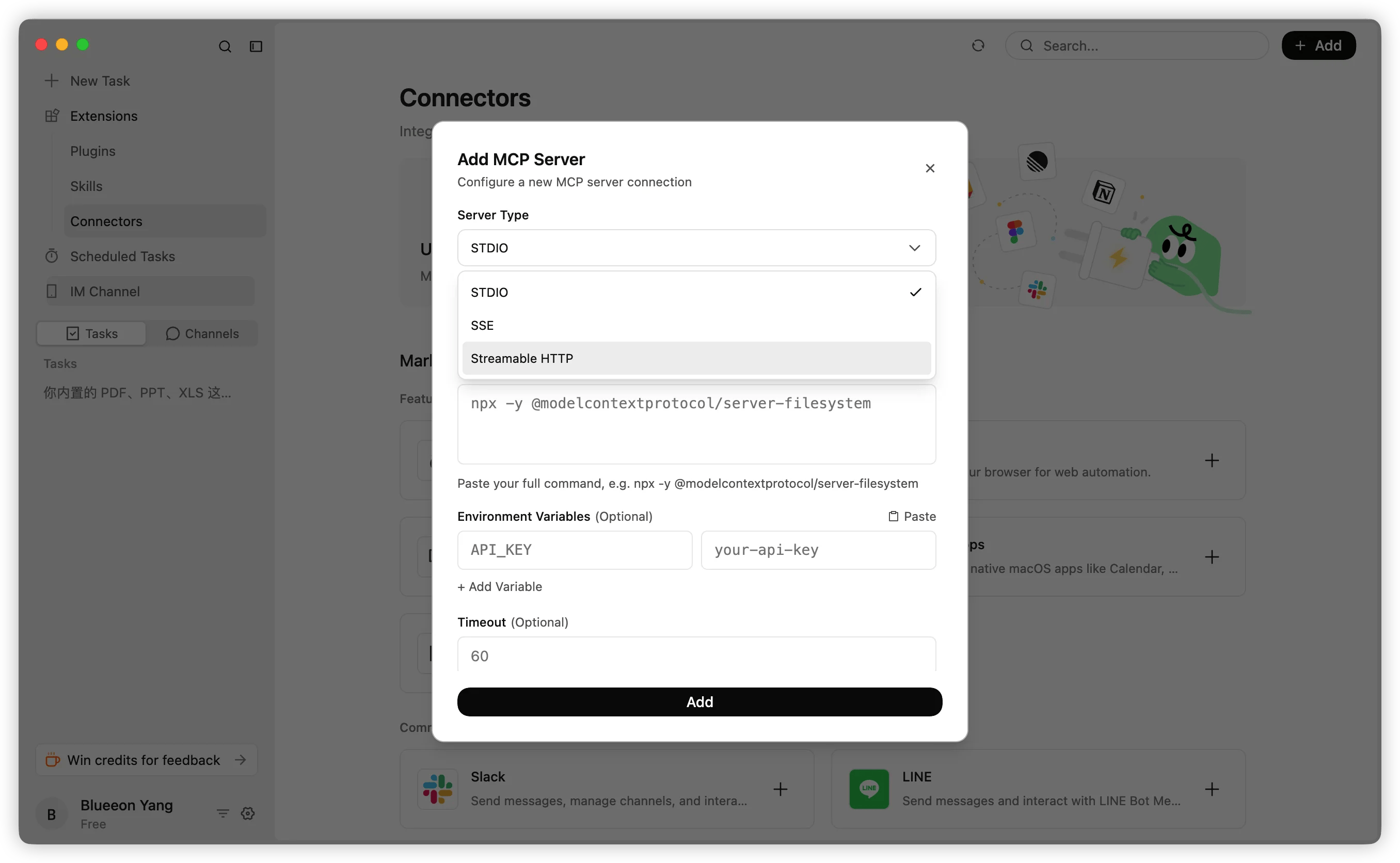
Click + Add in the top right, then select Fill in Config Manually from the dropdown.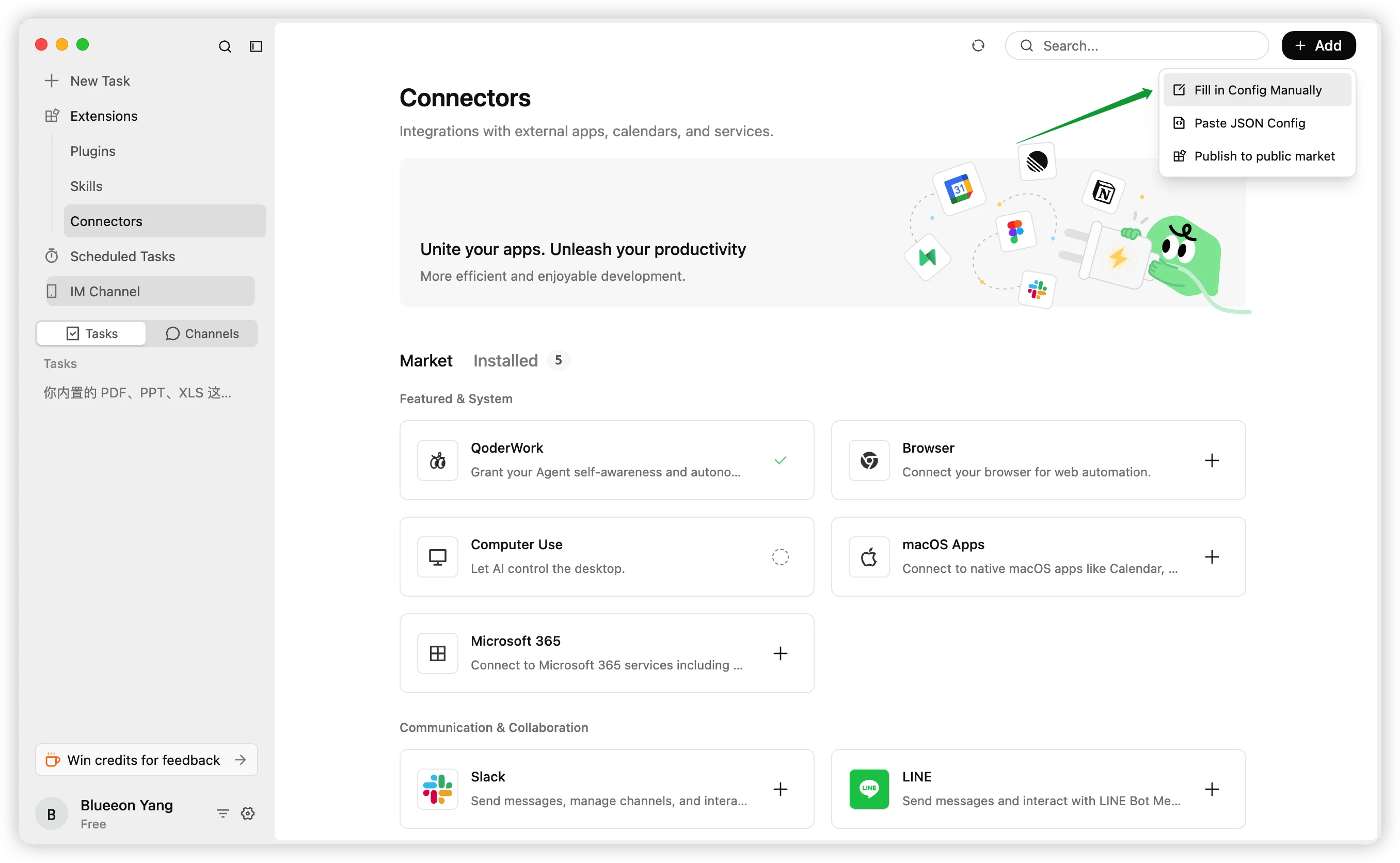
3
Fill in the configuration and add
In the Add MCP Server dialog, fill in the following: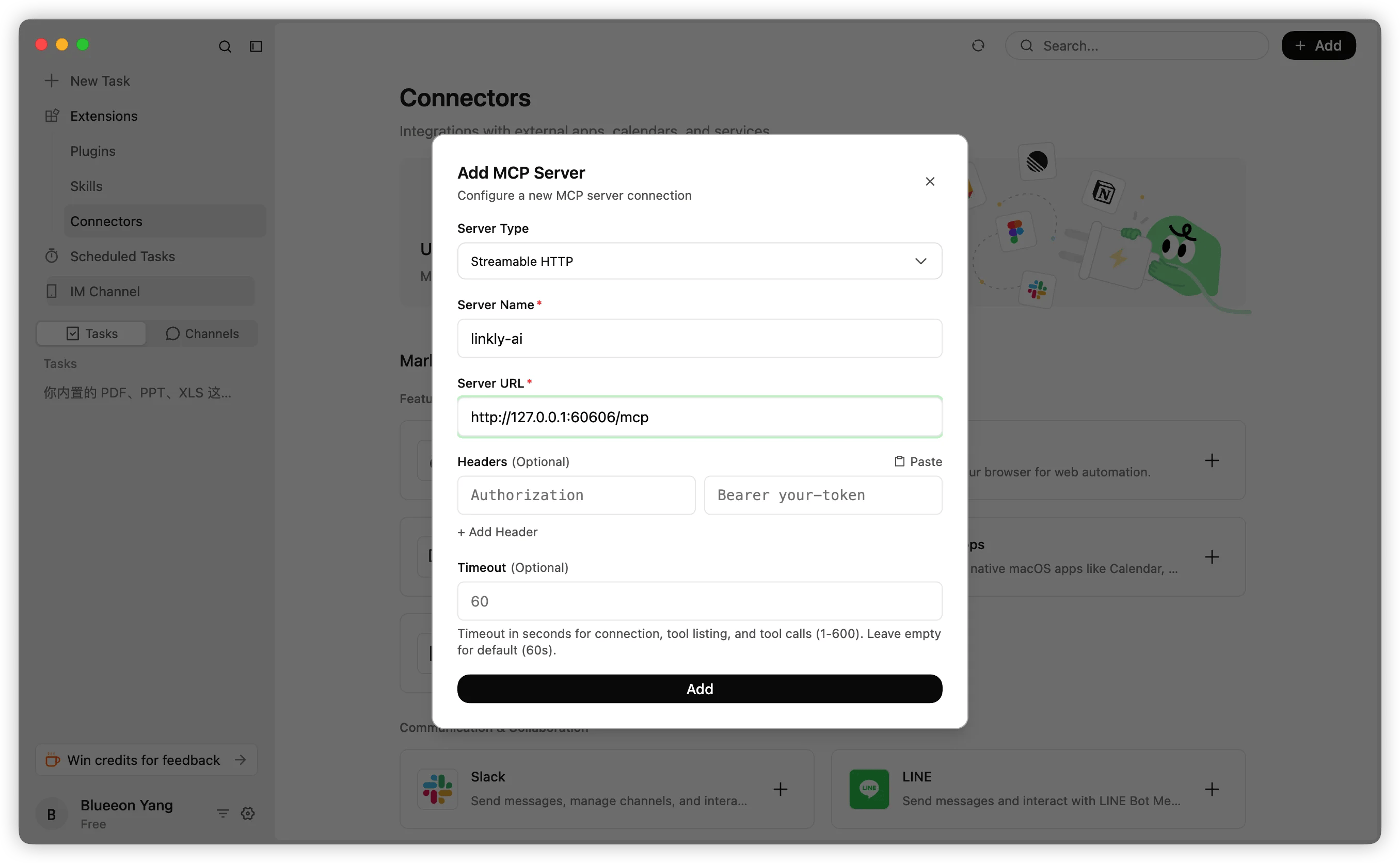
- Server Type:
Streamable HTTP - Server Name:
linkly-ai - Server URL:
http://127.0.0.1:60606/mcp
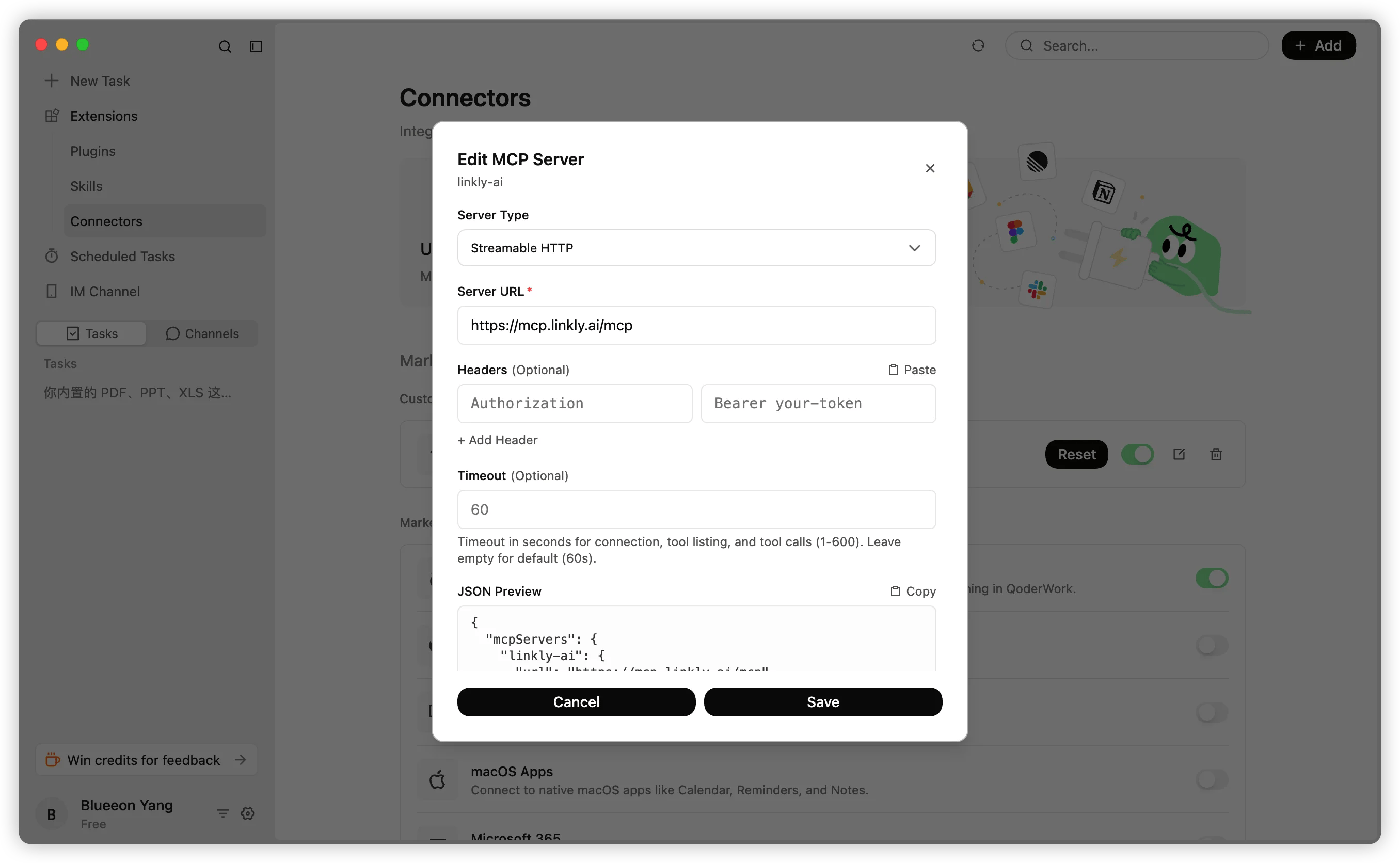
Enable in Conversations
After adding, you still need to manually enable the connector in each conversation. Click the plugin icon in the input toolbar, select Connectors, and toggle on linkly-ai.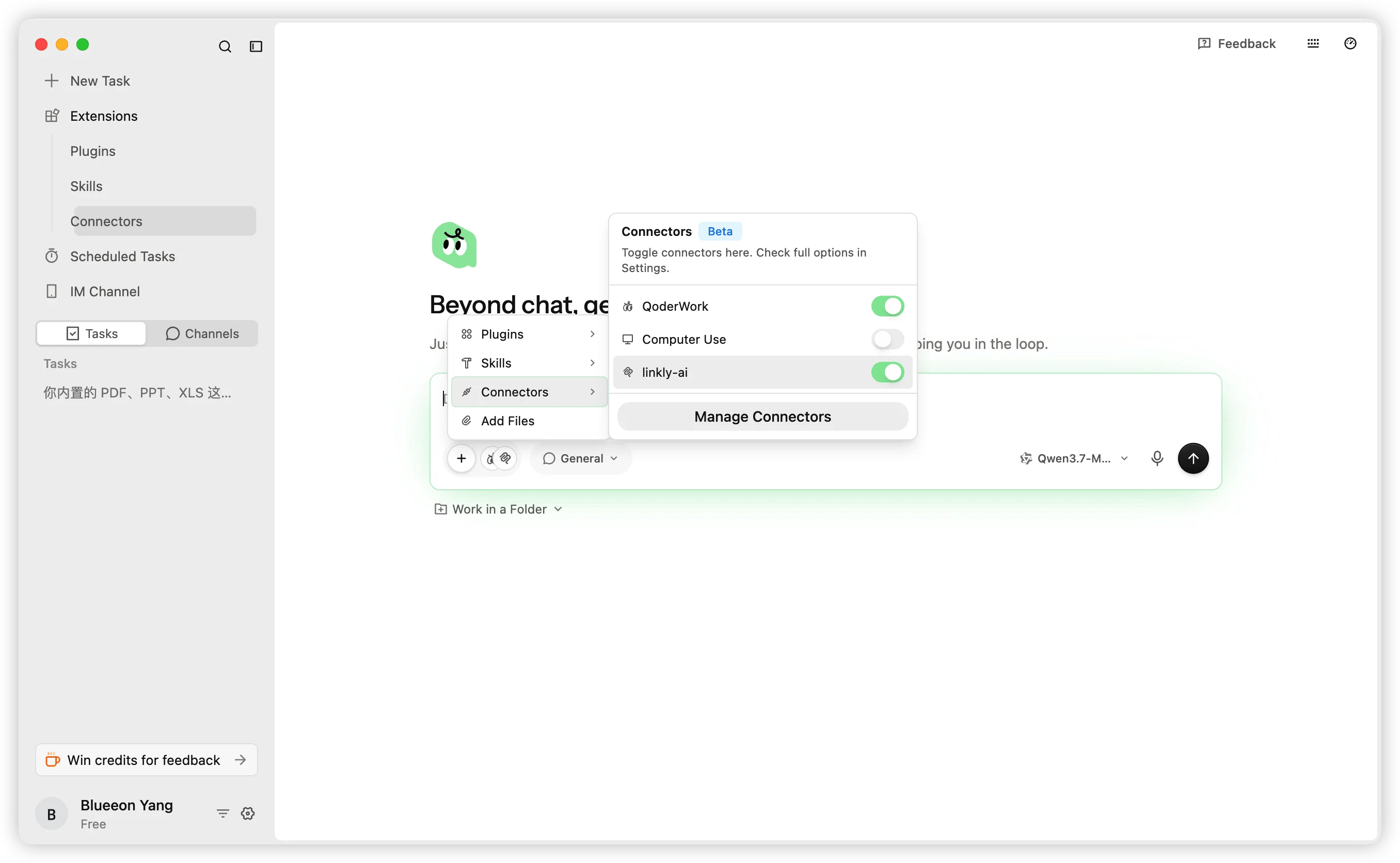
FAQ
Cannot find it in the Connectors list after adding
Cannot find it in the Connectors list after adding
Switch to the Installed tab on the Connectors page to see the installed list. If still not visible, try clicking the refresh button in the top right.
Remote MCP connection timed out
Remote MCP connection timed out
Make sure the remote access feature in Linkly AI Desktop is enabled and the desktop tunnel shows “Connected.” You can check this in the MCP section of Linkly AI settings.
STDIO mode: command not found
STDIO mode: command not found
Confirm Linkly AI CLI is correctly installed by running
linkly --version in a terminal.