

What You Can Do
Reference local documents when creating tasks
Reference local documents when creating tasks
When creating tasks in WorkBuddy, let AI first search your relevant local materials through Linkly AI, then combine the retrieved results to complete reports, proposals, and other tasks — outputs that are traceable and grounded in real sources.
Collaborate with Tencent ecosystem connectors
Collaborate with Tencent ecosystem connectors
Combine your local knowledge base with built-in connectors like Tencent Docs and Tencent Lexiang. WorkBuddy can simultaneously retrieve cloud collaboration content and local private documents, covering a more complete range of information sources.
Persistent knowledge source for your AI assistant
Persistent knowledge source for your AI assistant
Using WorkBuddy’s Assistant feature, let AI call Linkly AI at any time during conversations to search your notes, reference materials, and historical documents — no need to manually upload attachments each time.
Prerequisites
- WorkBuddy installed
- Linkly AI Desktop running with the MCP service active
Configuration Steps
- Local MCP HTTP (Recommended)
- Remote MCP
- CLI Stdio (Fallback)
1
Open Connectors
Click Experts·Skills·Connectors in the left navigation, switch to
the Connectors tab at the top, then click Custom connectors in
the top right.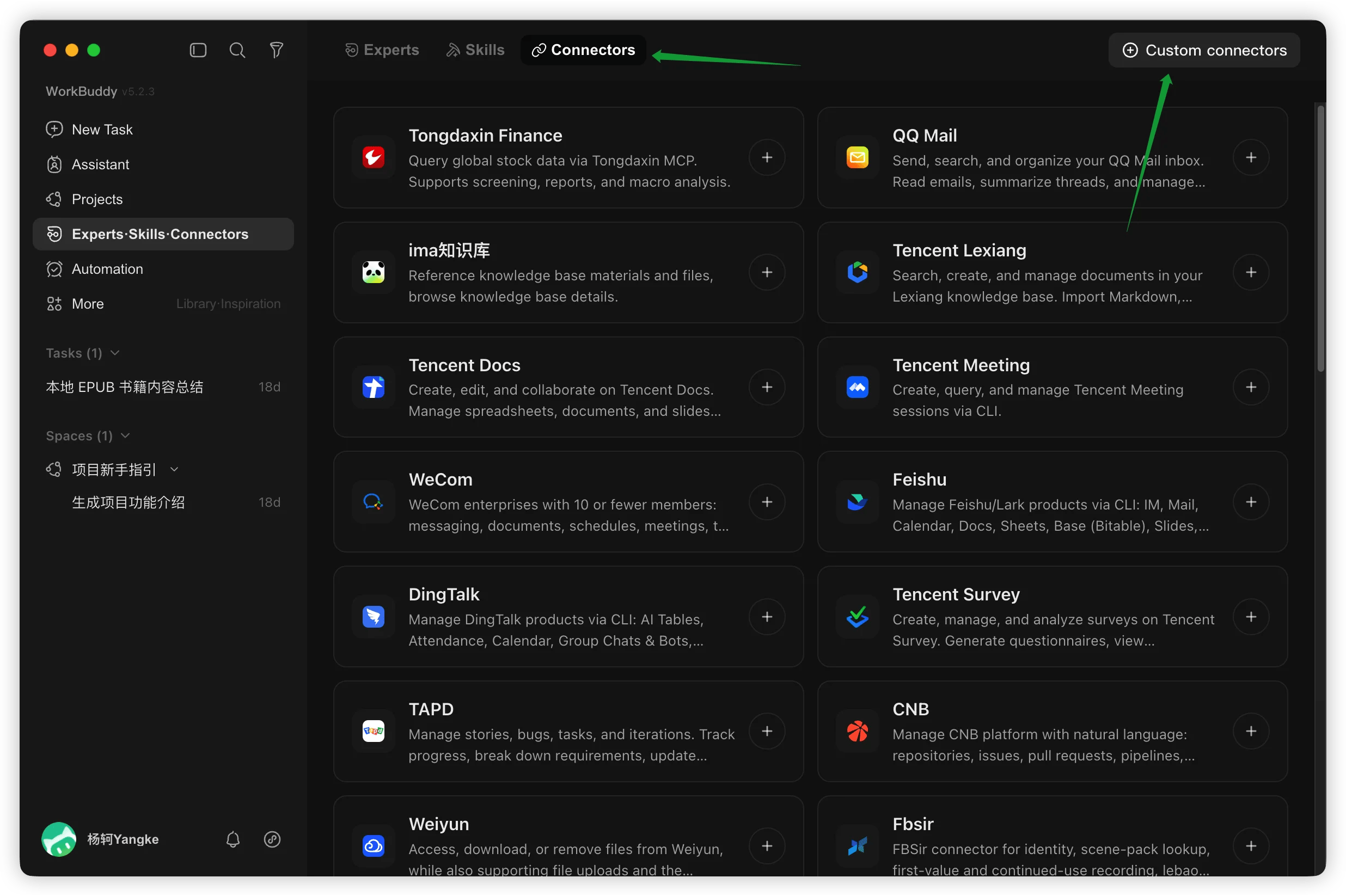
2
Open the MCP configuration editor
In the MCP Server Management dialog that appears, click Configure MCP in the top right to open the JSON configuration editor.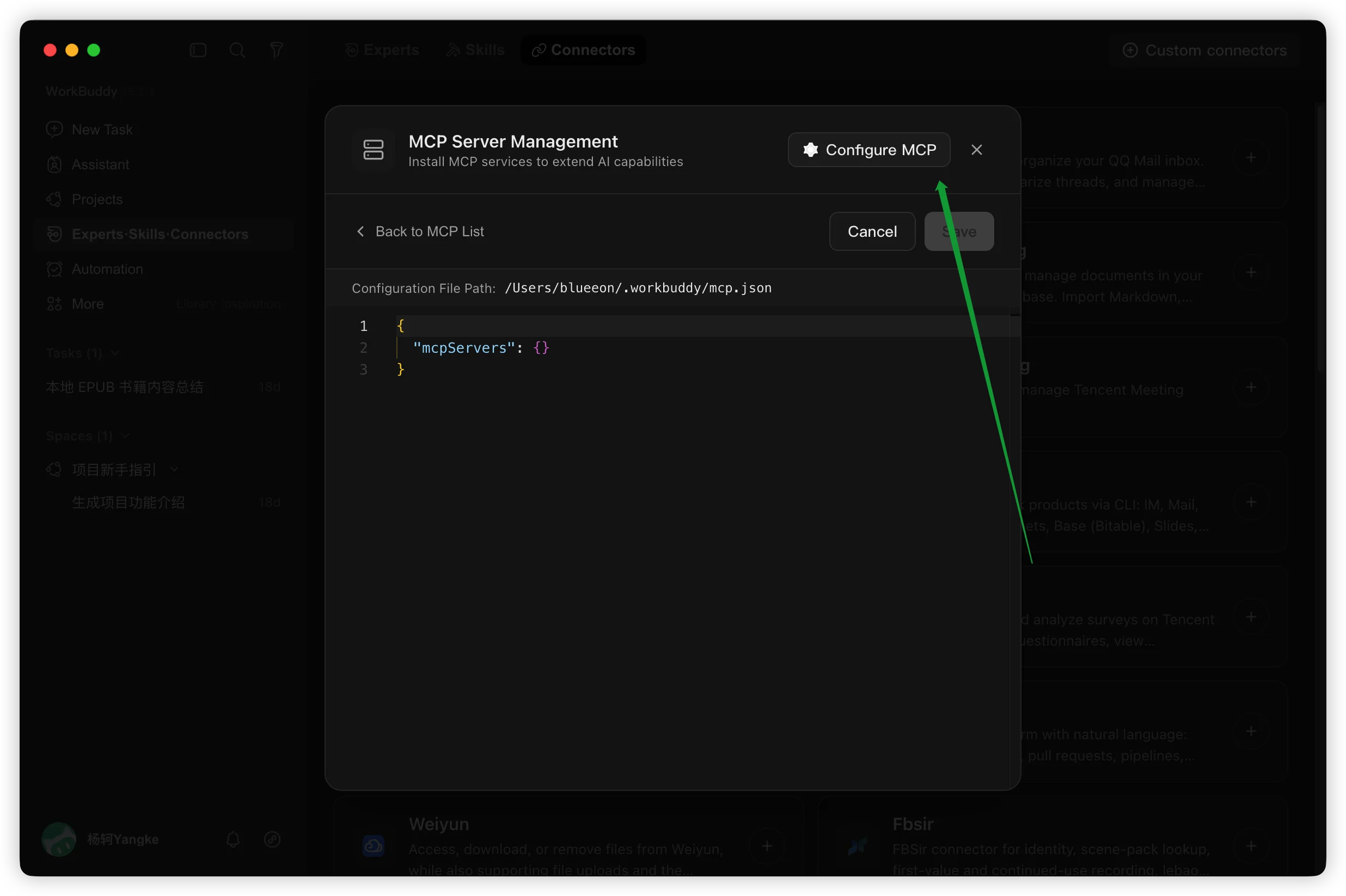
3
Fill in the configuration and save
Enter the following configuration in the editor, then click Save: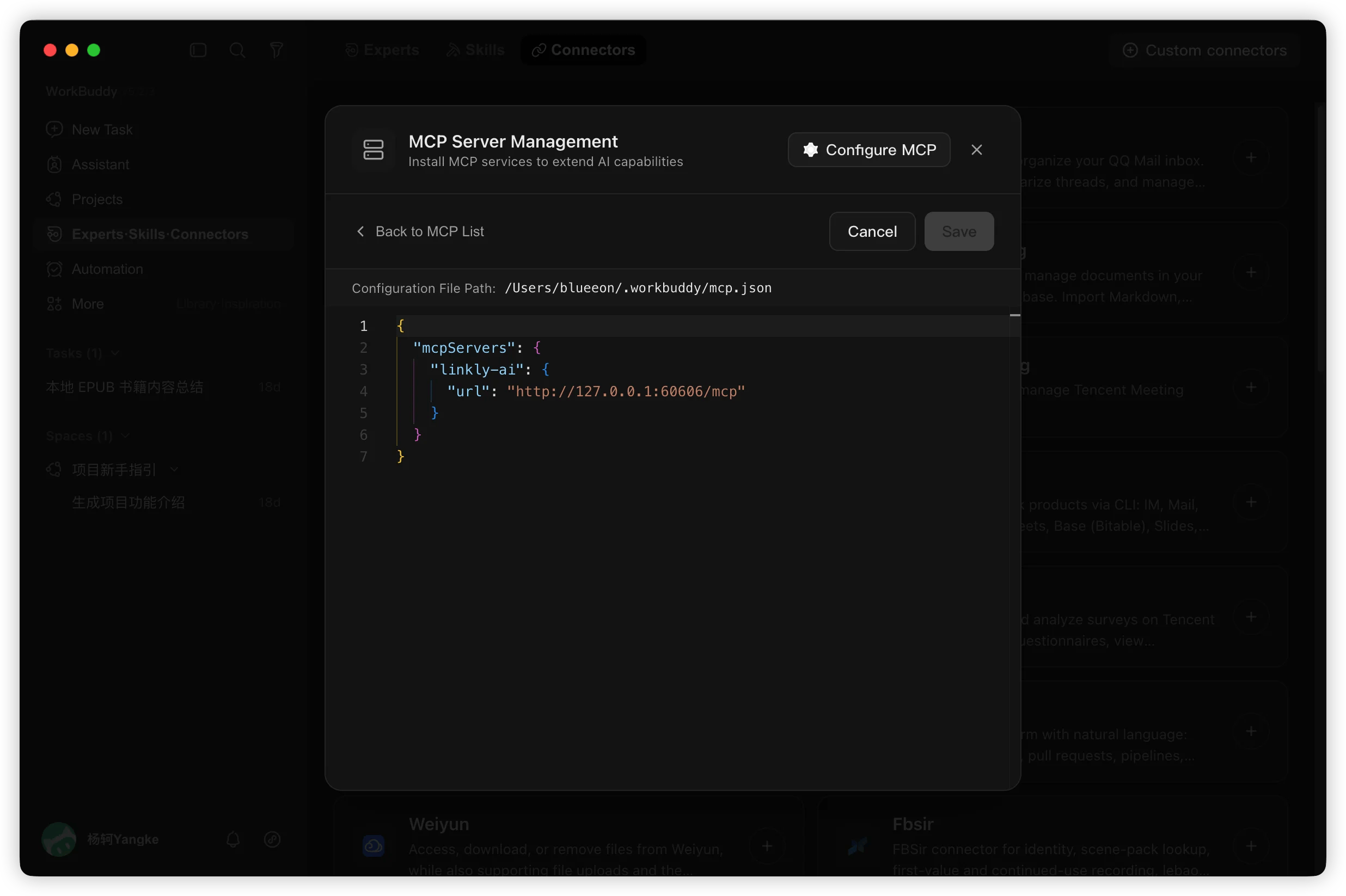
4
Trust the server
After saving, return to the MCP list, find the linkly-ai entry, and
click Trust to complete the first-time authorization.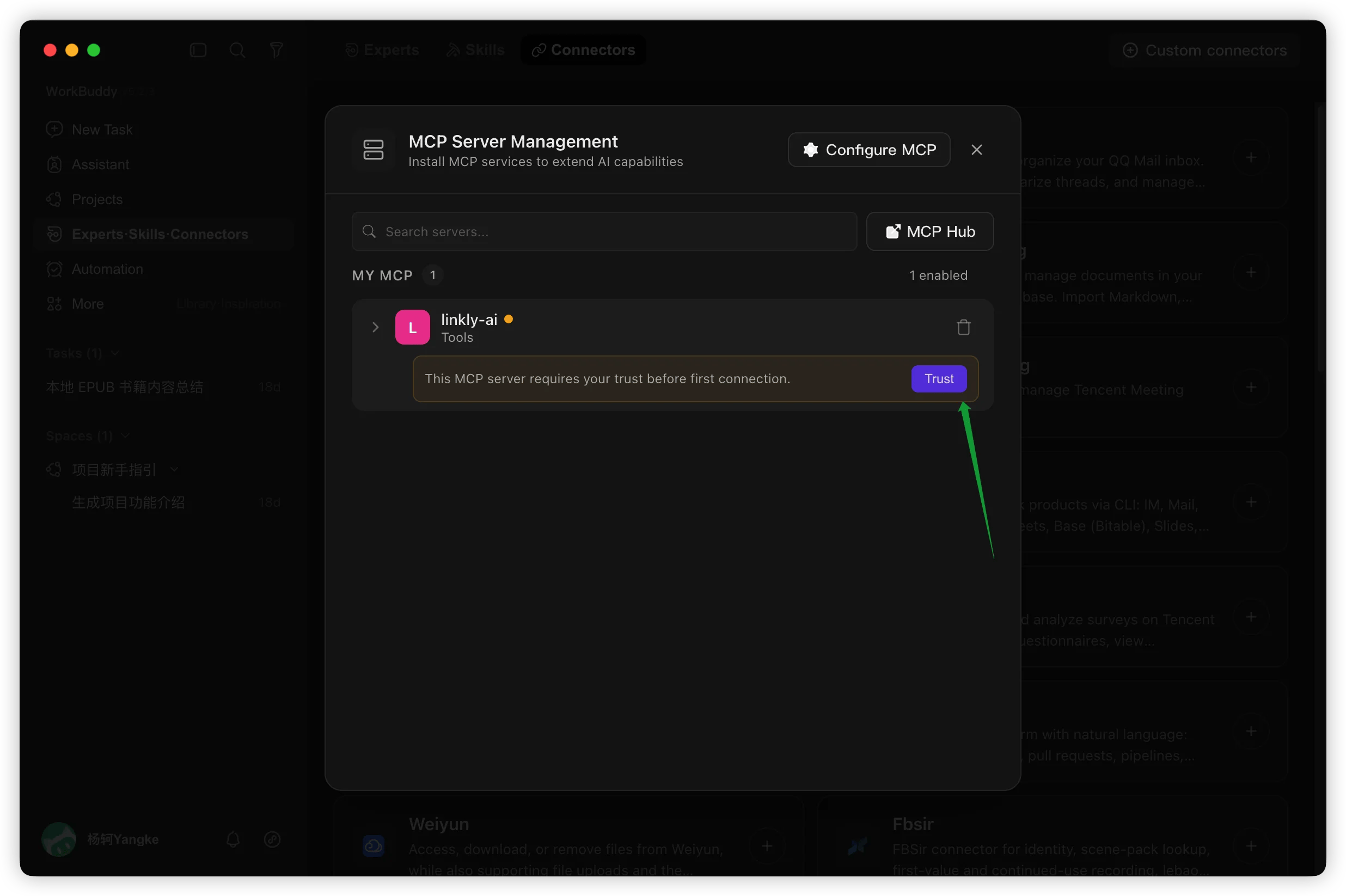
Getting Started
Once configured, simply describe your needs when creating a new task in WorkBuddy and AI will automatically call Linkly AI to search and read your local documents.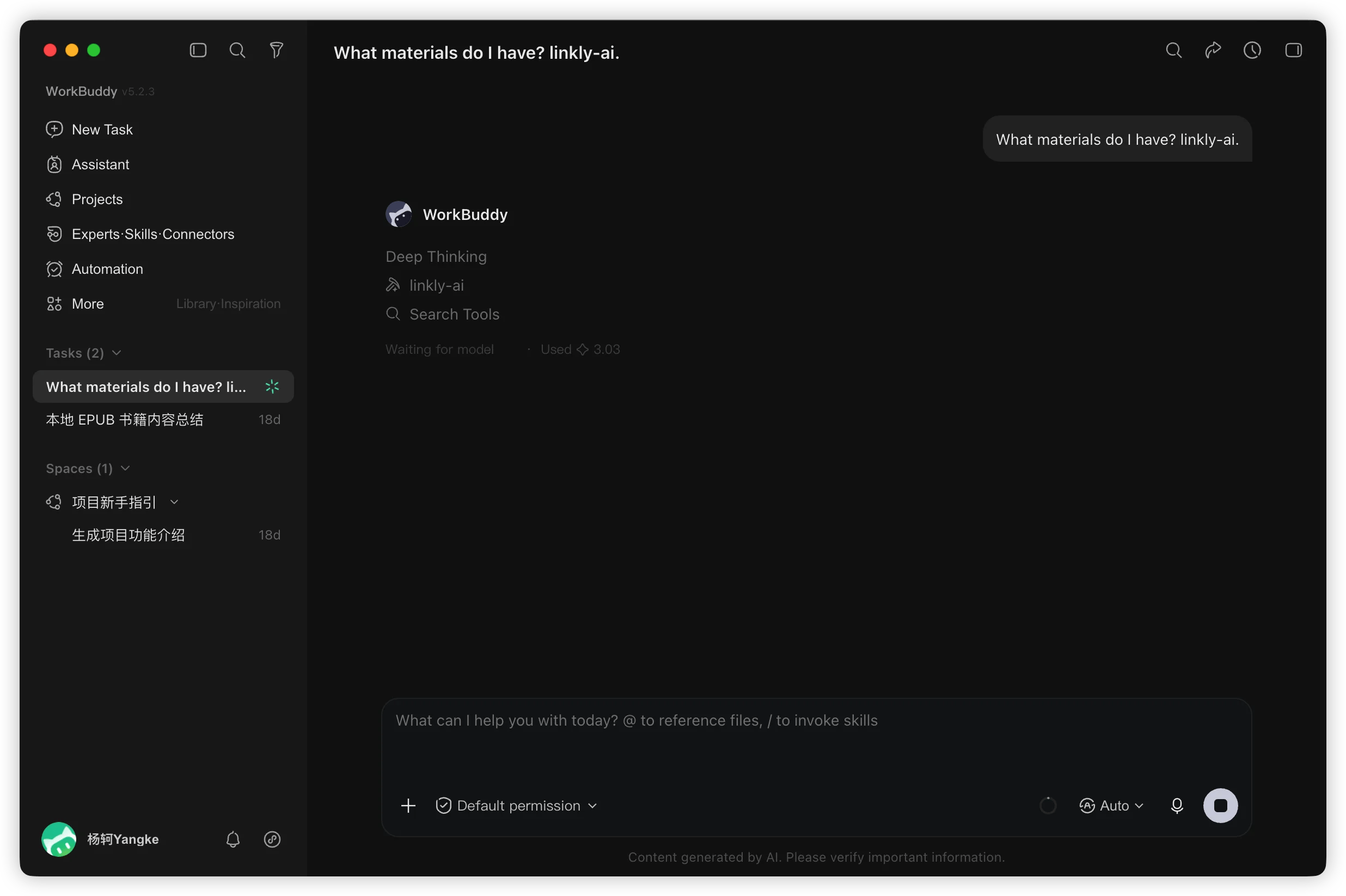
- “Search my local materials and compile an analysis report on XX”
- “What content about project requirements is in my documents?”
FAQ
linkly-ai shows a yellow dot in the MCP list
linkly-ai shows a yellow dot in the MCP list
Yellow means it is connecting — wait a moment and it usually turns green. If it stays yellow, check that Linkly AI Desktop is running and the MCP service shows Running.
Where is the MCP configuration file located
Where is the MCP configuration file located
WorkBuddy’s user-level MCP configuration is stored at
~/.workbuddy/mcp.json. The full path is shown in the Configuration File Path field at the top of the Configure MCP editor.