
How to Save a Web Page as Markdown
Facts checked on November 23, 2026
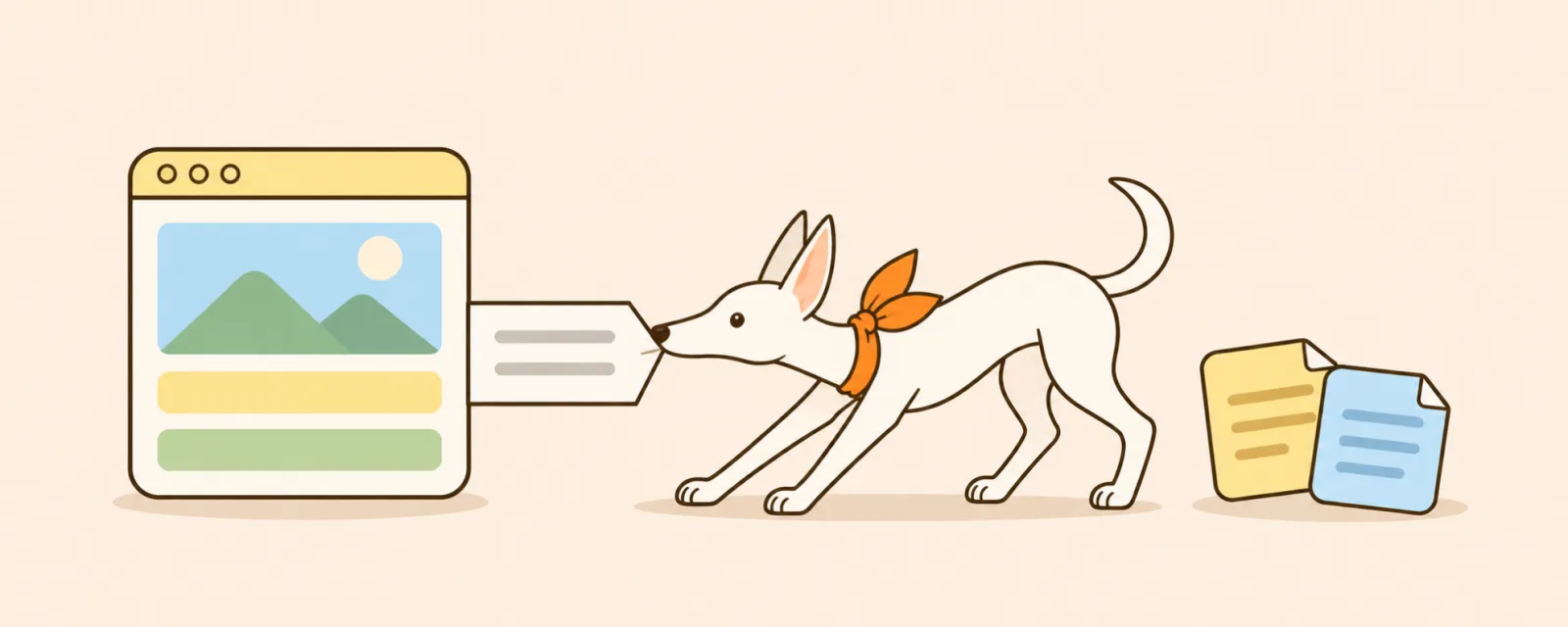
Install Linkly AI Clipper, open the page and click the icon in the toolbar. The side panel shows the article as Markdown, ready to copy or download. It is free and needs no sign-in.
Steps
- Add the extension in Chrome 116 or later, or in Edge or Brave.
- Open the page and click the toolbar icon.
- Check the preview. Use Edit source to remove parts you don't need.
- Click Copy to paste it into an AI chat, or Download to save it.
What you get
- The main text, without navigation, ads and recommendations.
- Images saved next to the file with local links, so it reads offline.
- Front matter with title, source address, site, author and date. You can turn it off.
- Code blocks with their language tagged.
---
type: "Web Article"
title: "Example article"
resource: "https://example.com/article"
timestamp: 2026-11-23T08:00:00Z
site: "Example"
---
Sites with special handling
X threads, YouTube and Bilibili transcripts, ChatGPT and Claude conversations, WeChat articles, Zhihu, Weibo, Xiaohongshu, Lark Docs and V2EX each have their own extraction. Other sites use the general one.
Where files go
Without the desktop app, files go to Downloads/Linkly/. With the Linkly AI desktop app running, they go straight into your library and become searchable for your AI agent.
What it can't do
It saves the whole article, not a selection. Firefox is not supported. Pages that load their text as images have no text to extract.

Linkly AI Clipper saves web pages as clean Markdown. Free, no sign-in.